Note: Dashboard and Learning Hub are two different things. Your Dashboard is your entire creator back office, everything covered in this article. Your Learning Hub is the student-facing site you build from your Dashboard: your Home Page, your course Sales Pages, and the gated student view. See Understand Learning Hub for that side of it.
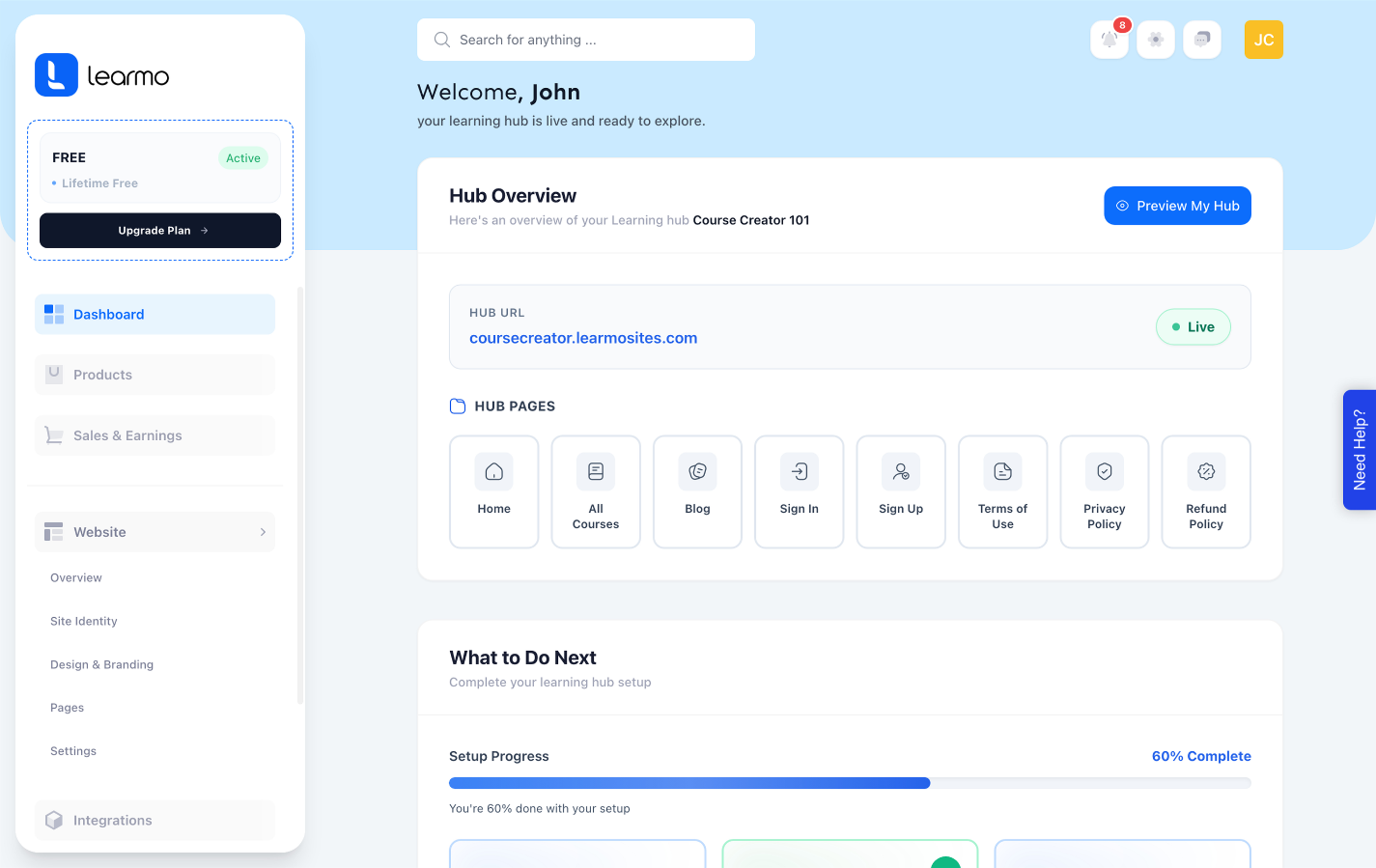
Your Dashboard is your entire creator back office on Learmo. It's where you manage your courses, track your sales, edit your Learning Hub, connect payment tools, publish blog posts, and see everyone in your account. Everything you do as a creator on Learmo happens here.
Your Dashboard is organized into eight sections, listed in your sidebar. Here's what each one covers.
The first screen you see when you log in. It's a section of your Dashboard, and it's also literally called Dashboard in the sidebar, this article uses "Dashboard Home" to keep the two distinct.
Hub Overview. Your Learning Hub's URL, live status, and quick links to your Learning Hub Pages (Home, All Courses, Blog, Sign In, Sign Up, Terms of Use, Privacy Policy, Refund Policy).
What to Do Next. A setup progress checklist with the highest-impact tasks left to complete, like publishing a course or connecting social media.
Key stats. Live Courses, Enrolled Users, Total Sales, and Average Completion Rate at a glance.
Tips and How-To Tutorials. Short guidance and step-by-step tutorials for common tasks.
Where you create and manage your courses. Covered in depth in the AI Course Creation Wizard and Courses and Curriculum articles.
Your revenue summary, sales log, and transaction records. Covered in depth in Understand Your Sales Overview and Read Your Sales Log and Transaction Records.
Where you manage your Learning Hub, split into five tabs:
Overview. Visitor traffic, visits, top pages, traffic sources, and visitor locations.
Site Identity. Your Learning Hub name, tagline, and domain.
Branding. Your logo, favicon, and theme color.
Pages. Your Home Page and other System Pages (Courses, Blog, Sign In, Sign Up, legal pages). Editing your Home Page from here takes you into the Page Builder.
Settings. Additional site-level configuration.
Covered in depth in Manage Your Learning Hub Identity and Branding, Understand Your Learning Hub Pages, and Access and Navigate the Page Builder.
Connect external tools to your Learning Hub. Stripe is live for accepting payments. Covered in depth in Connect Stripe.
Publish blog posts to your Learning Hub using the AI Blog Wizard, or write your own. Covered in depth in Create a Blog Post with the AI Blog Wizard.
Add links to your social media profiles, which display on your Home Page.
A unified list of everyone in your account, students, instructors, and leads, with their contact details and the date they joined.
Create a Course with the AI Course Wizard
Understand Your Sales Overview
Manage Your Learning Hub Identity and Branding
Access and Navigate the Page Builder
Connect Stripe
Create a Blog Post with the AI Blog Wizard