This article covers three things: logging in to your Learmo account, resetting your password if you forget it or want to change it, and managing your account access, including your email address and active sessions.
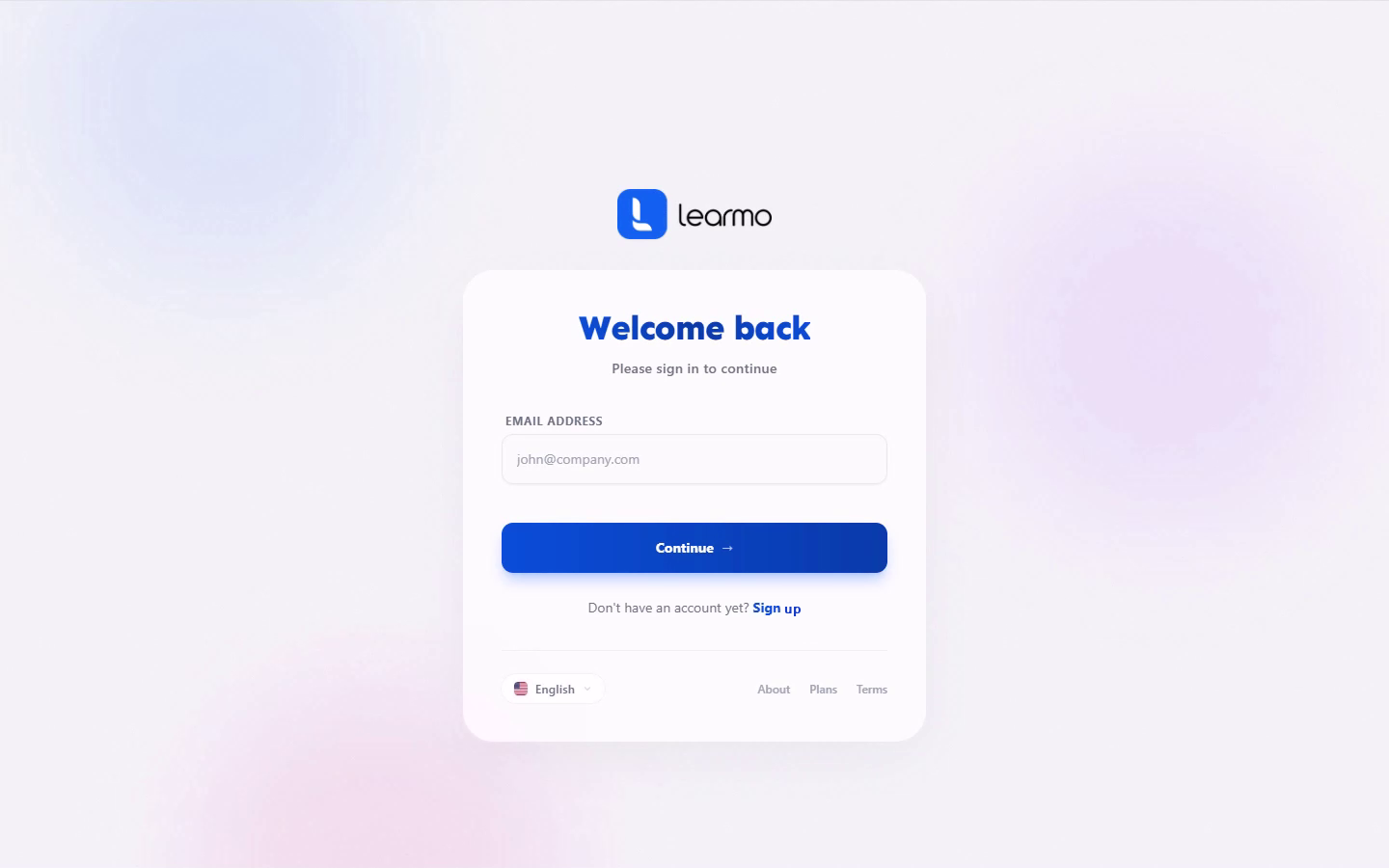
Go to app.learmo.com to log in.
Enter your email address and select Continue.
Enter your password and select Continue again.
If you are already signed in on that browser, Learmo skips straight to your Dashboard instead of asking you to log in again.
There are two different ways to reset your password, depending on whether you can still log in.
If you cannot log in. Select Forgot password? on the login screen, enter your email address, and select Request Recovery. Learmo sends a password reset link to that email address.
If you are already logged in and want to change your password. Go to your Dashboard, open Account Settings, and select Sign In & Security. Under Password, select Reset Password. Enter your current password, then your new password, then confirm it. Your new password must be at least 8 characters and include an uppercase letter, regardless of what the on-screen hint says.
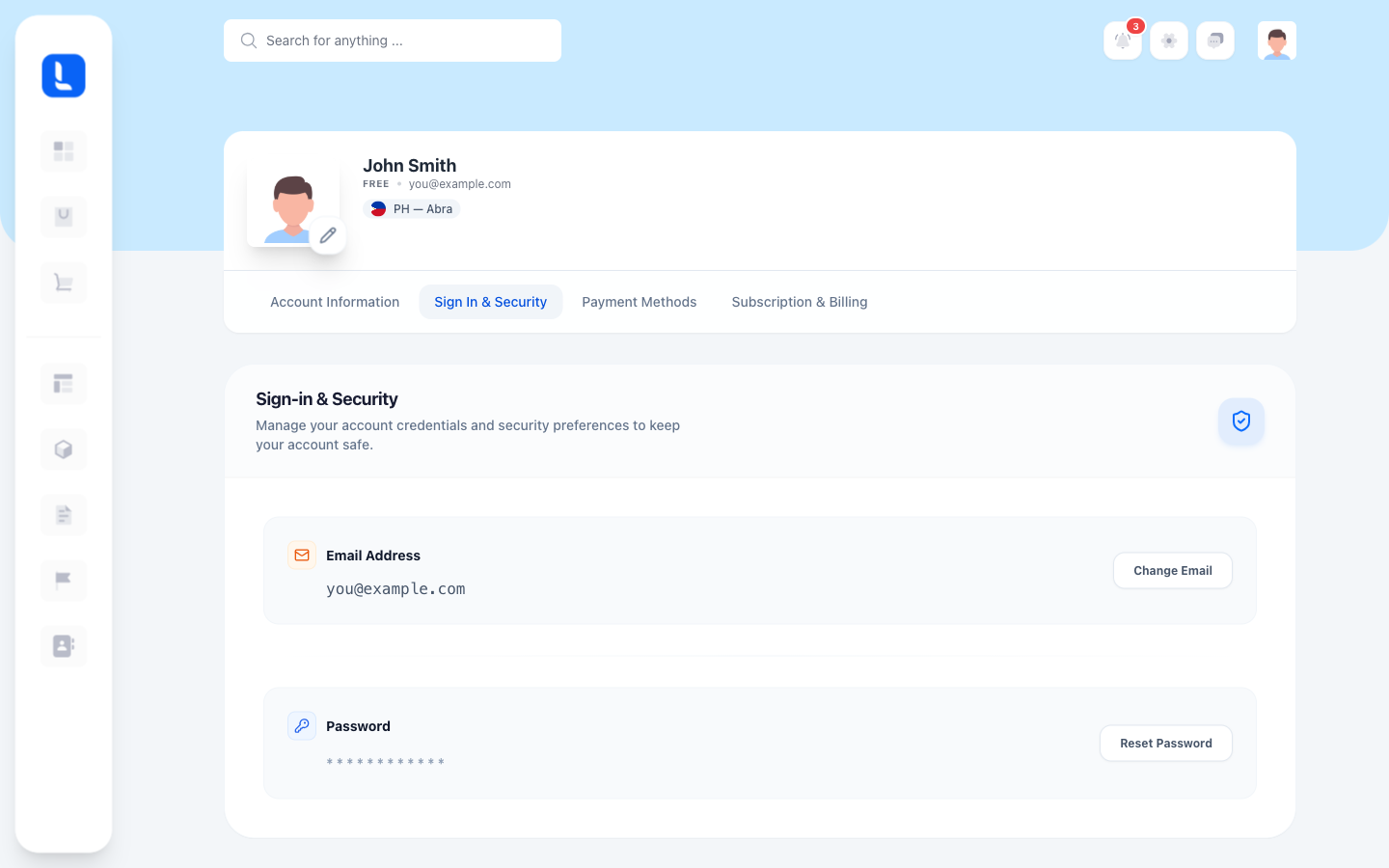
To get there, go to your Dashboard, open Account Settings, and select Sign In & Security.
Change your email address. Under Email Address, select Change Email and follow the prompts.
Change your password. Under Password, select Reset Password. See Reset Your Password above.
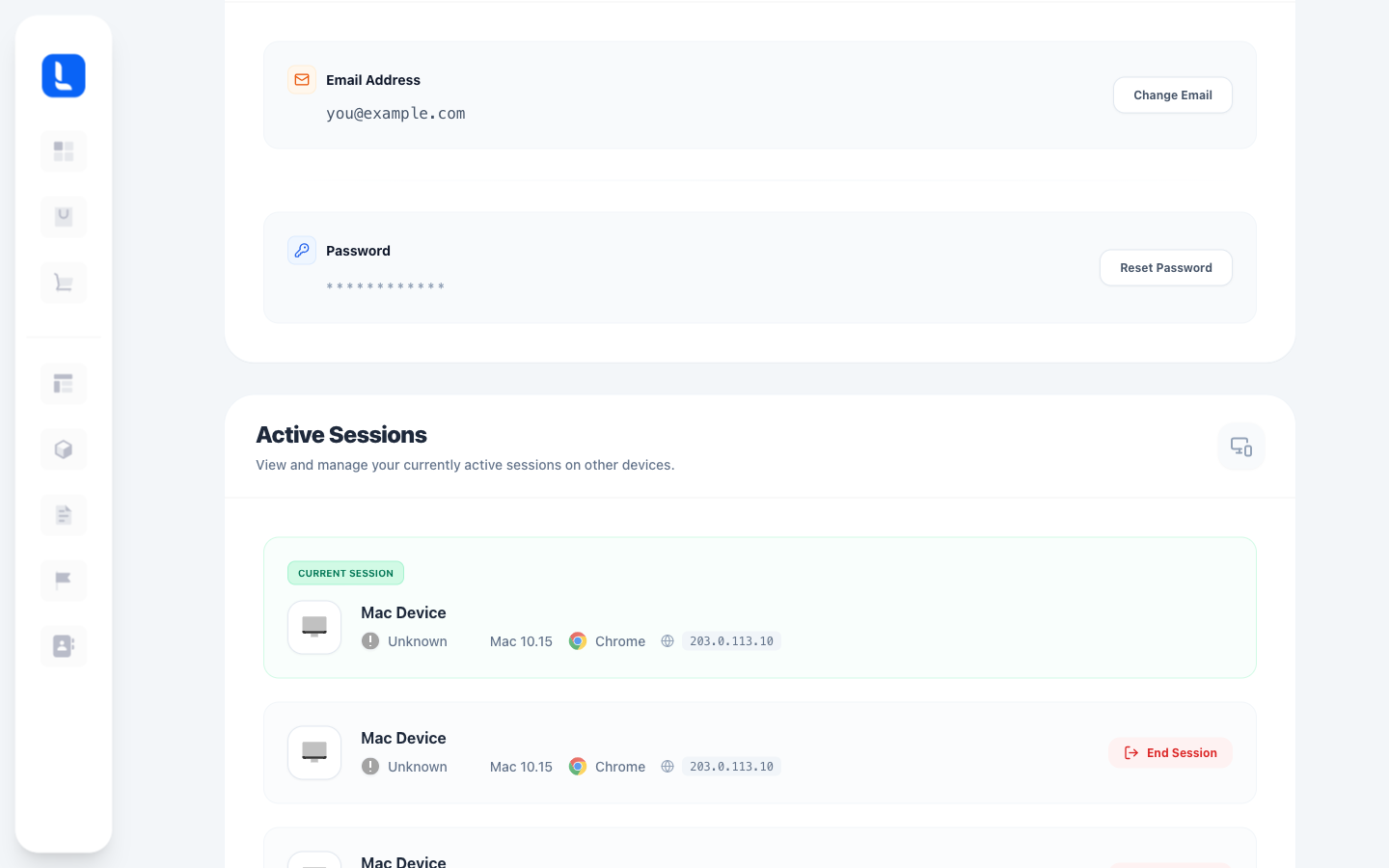
Review active sessions. Under Active Sessions, you can see every device currently signed in to your account. Select End Session next to any device you do not recognize or no longer use to sign it out immediately.
/image