Note: Learmo is currently in Beta and available by invitation only. You may receive a direct invitation from the Learmo team, or you can request access at app.learmo.com/invitation-needed. If your request is approved, Learmo will send you a personal invitation email with your registration link. Either way, you will need that invitation email to create your account.
Here is how to create your Learmo account once you have your invitation.
Find the invitation email from Learmo in your inbox and select the personal registration link inside it. This takes you directly to the registration page.
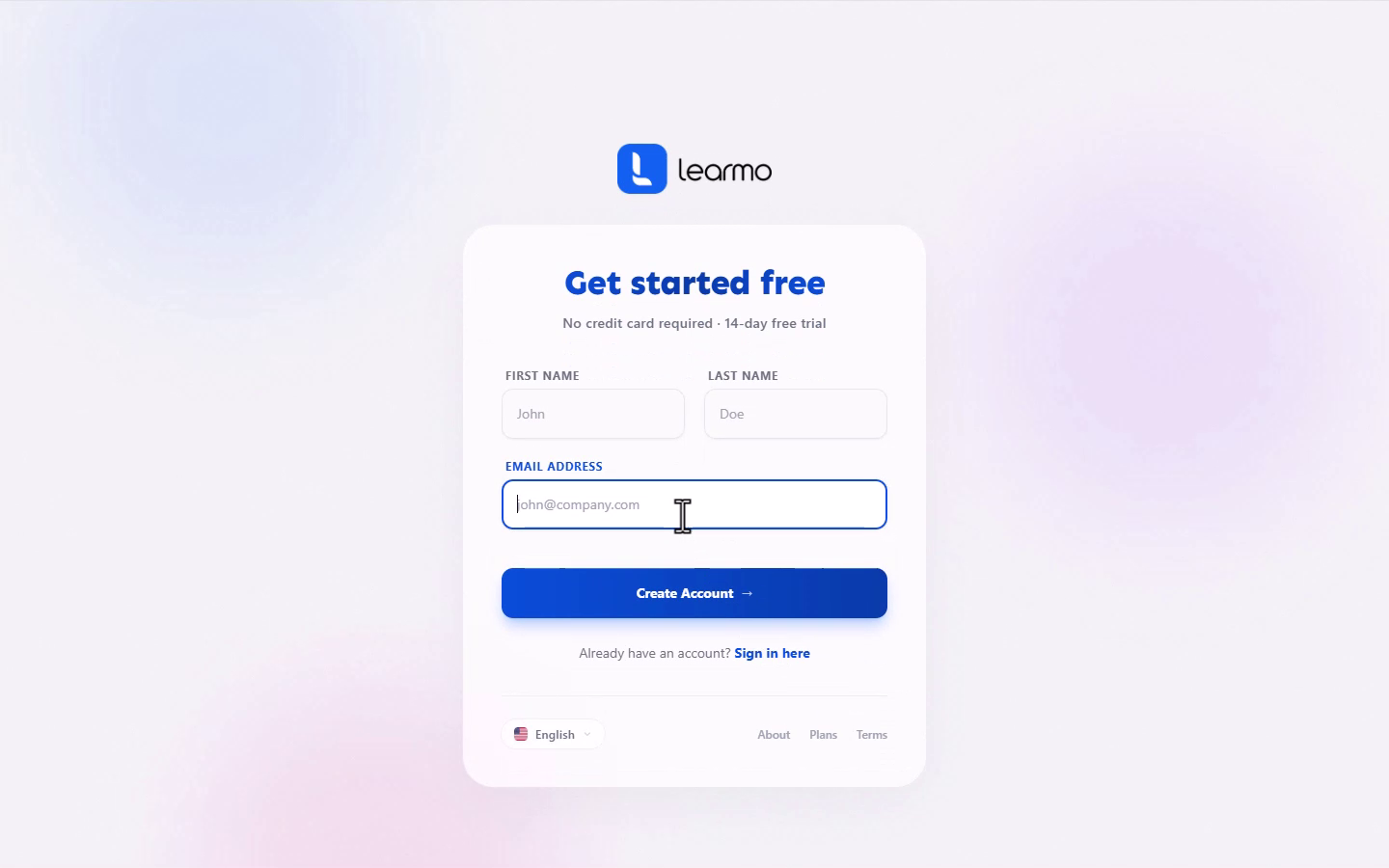
On the registration page, complete the following fields:
First Name and Last Name. Enter your name as you want it to appear in your account.
Email Address. Use an email address you have access to. You will need it to verify your account later.
Choose Password. This field appears once you have entered your name and email. Your password must be at least 8 characters long and include a mix of letters, numbers, or symbols, plus at least one uppercase letter.
Agree to the Terms of Service and Privacy Policy. Check the box to confirm you agree before continuing.
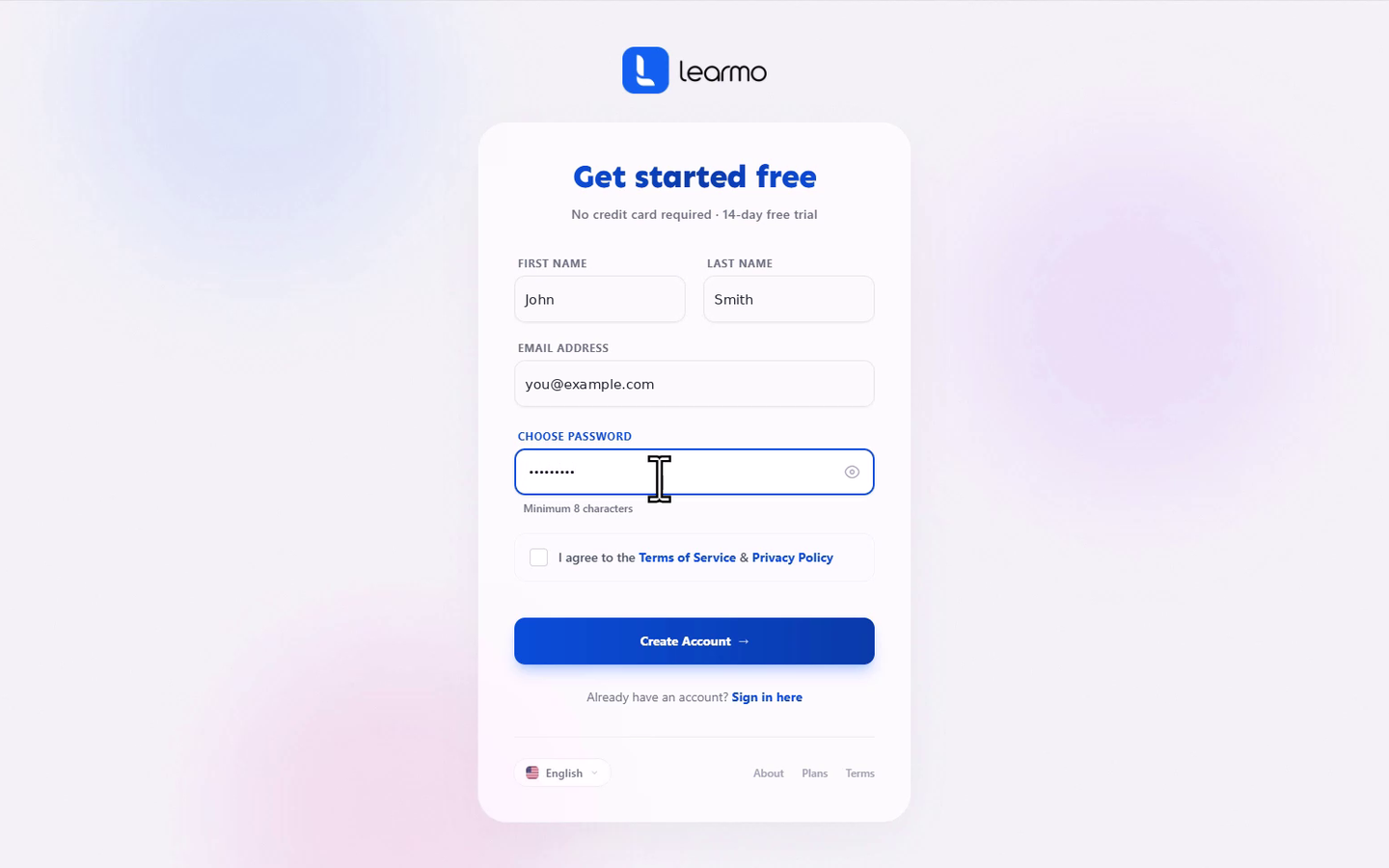
Select Create Account. Learmo takes you straight into the AI Onboarding Wizard, no email verification needed at this point. Once you finish the wizard and your Learning Hub goes live, Learmo sends a verification email, and a matching banner appears at the top of your Dashboard until you confirm it.