This article covers the Website > Pages screen: the pages Learmo creates for your Learning Hub by default, and how they're organized.
Before making any changes, you can see how a page currently looks using its Preview icon in the list below, or select Preview My Hub from your Dashboard to see your whole live Learning Hub. See Preview, Share, and Track Visits to Your Learning Hub for details.
From your Dashboard, go to Website > Pages.
Use the filter tabs, All, Published, Draft, or System, to narrow the list, or use Search pages by title to find one by name.
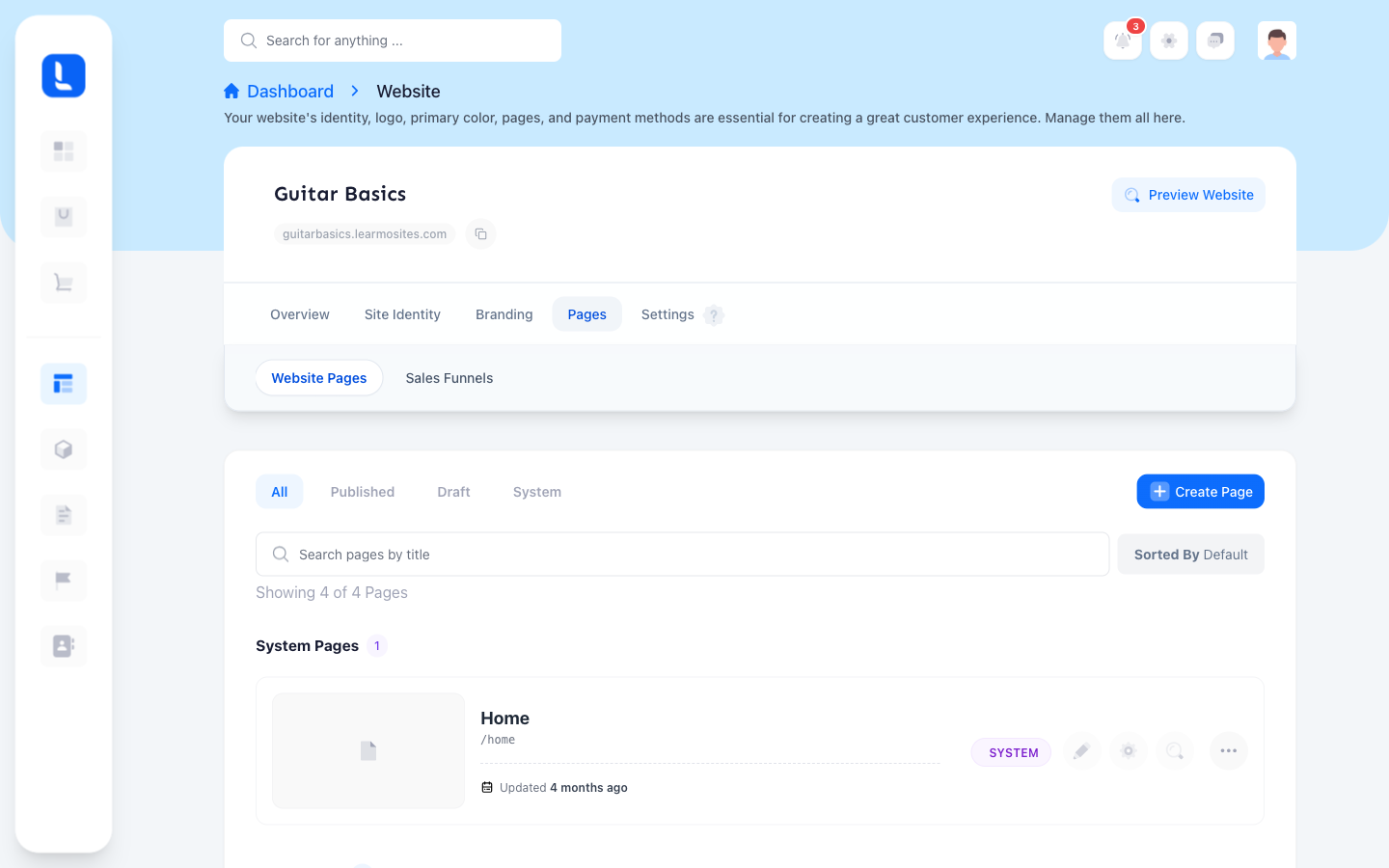
Your pages are grouped into three sections:
System Pages - pages Learmo creates and manages for your Learning Hub, such as your Home Page. These aren't optional; every Learning Hub has them.
Pages - any additional pages you create yourself, beyond the default set.
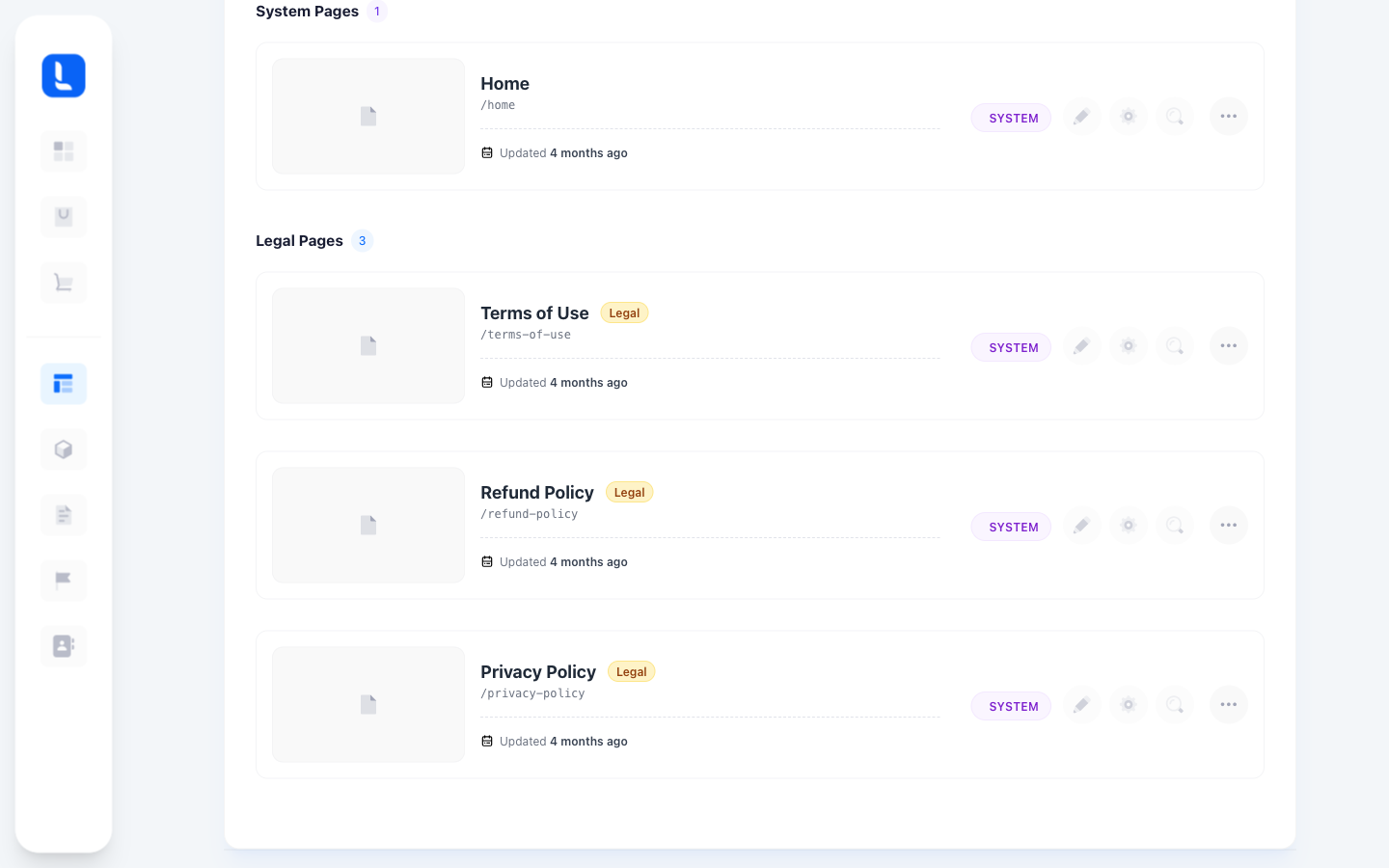
Legal Pages - your Terms of Use, Refund Policy, and Privacy Policy, generated automatically during the AI Onboarding Wizard from the business and legal details you provided.
Every Learning Hub launches with the same set of default pages, linked from its main navigation:
Home - your Learning Hub's landing page, assembled from your Hub Identity and branding during the AI Onboarding Wizard. This is the only default page listed under System Pages on the Website > Pages screen.
All Courses - a browsable, searchable catalog of your published courses, with filters for visitors to narrow the list. Selecting a course opens its Sales Page, where a visitor can review it and enroll.
Blog - lists your published blog posts by category, for visitors who want articles and updates rather than courses.
Sign In - where returning students log in to access their enrolled courses.
Sign Up - where new students create an account, agreeing to your Terms of Use and Privacy Policy as part of registration. Creating an account gives a student their own My Dashboard, a student-side page separate from your own Dashboard as a creator, right away, even before they enroll in anything.
Terms of Use, Privacy Policy, and Refund Policy - your three Legal Pages, generated automatically from the business and legal details you entered during the wizard. See Edit Your Legal Pages for how to review and update them.
All Courses, Blog, Sign In, and Sign Up are built into every Learning Hub and don't appear as separate rows on the Website > Pages screen, only Home and your three Legal Pages do.
Each page in the list shows its title, its URL path, and how long ago it was last updated. Select the icons next to a page to:
Edit (pencil) - open the page's content for editing.
Settings (gear) - adjust page-level settings.
Preview (magnifying glass) - see the page as a visitor would.
The more icon (the three dots) opens the same three actions, Preview Page, Edit Details, and Page Settings, in one dropdown.
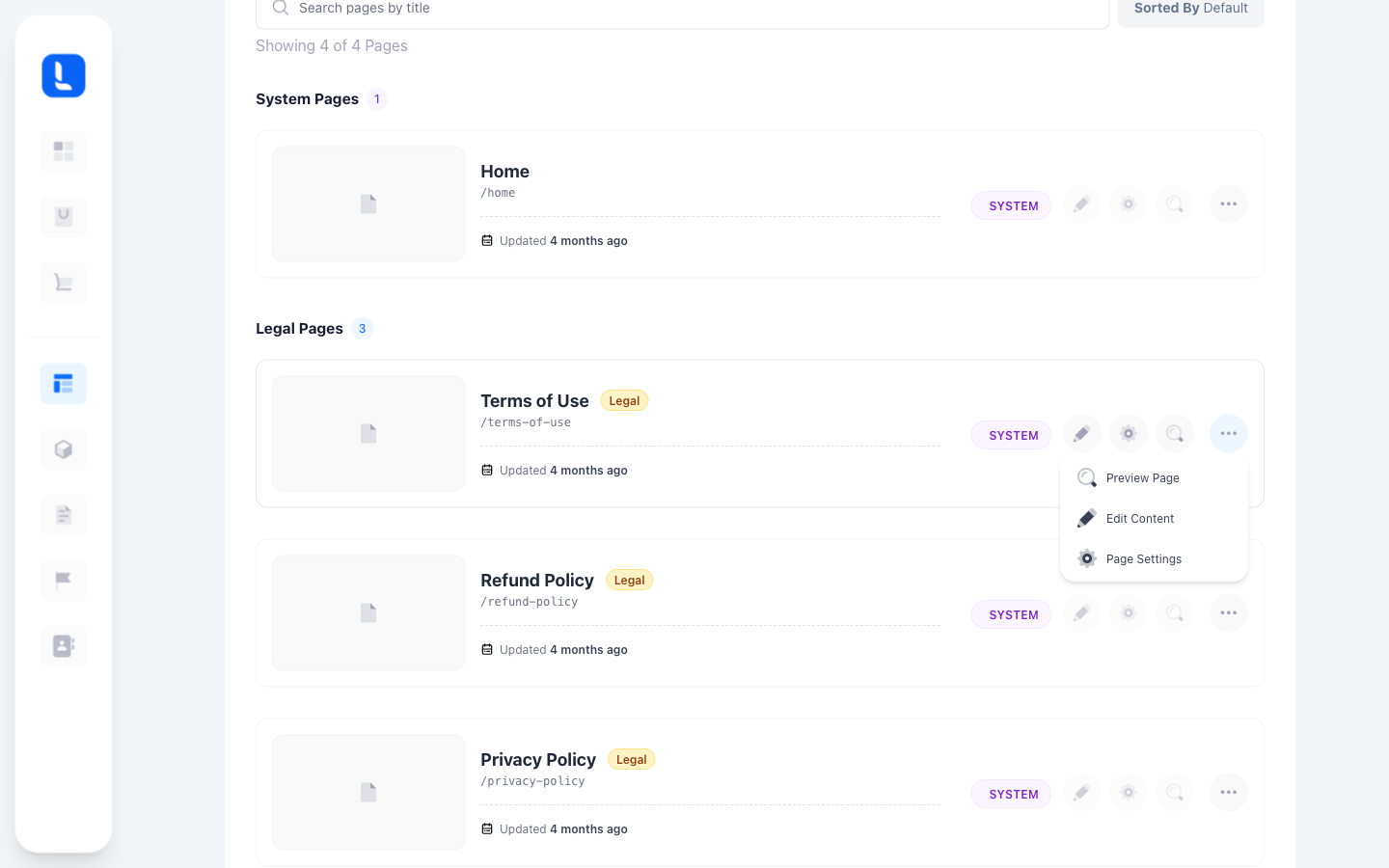
Pages tagged SYSTEM are managed by Learmo and can't be deleted. Legal Pages carry both a SYSTEM and a Legal tag, since they're both Learmo-managed and required for your Learning Hub.
Select Create Page to add a new page of your own to your Learning Hub.