This article covers how to edit your Terms of Use, Privacy Policy, and Refund Policy pages from your Dashboard, and how to restore Learmo's default template for any of them.
Privacy Policy - tells visitors and students what personal information your Learning Hub collects and how it's used.
Refund Policy - tells students the refund window you're offering on your courses.
Terms of Use - sets the rules students agree to when using your Learning Hub, such as how your courses and content may be used.
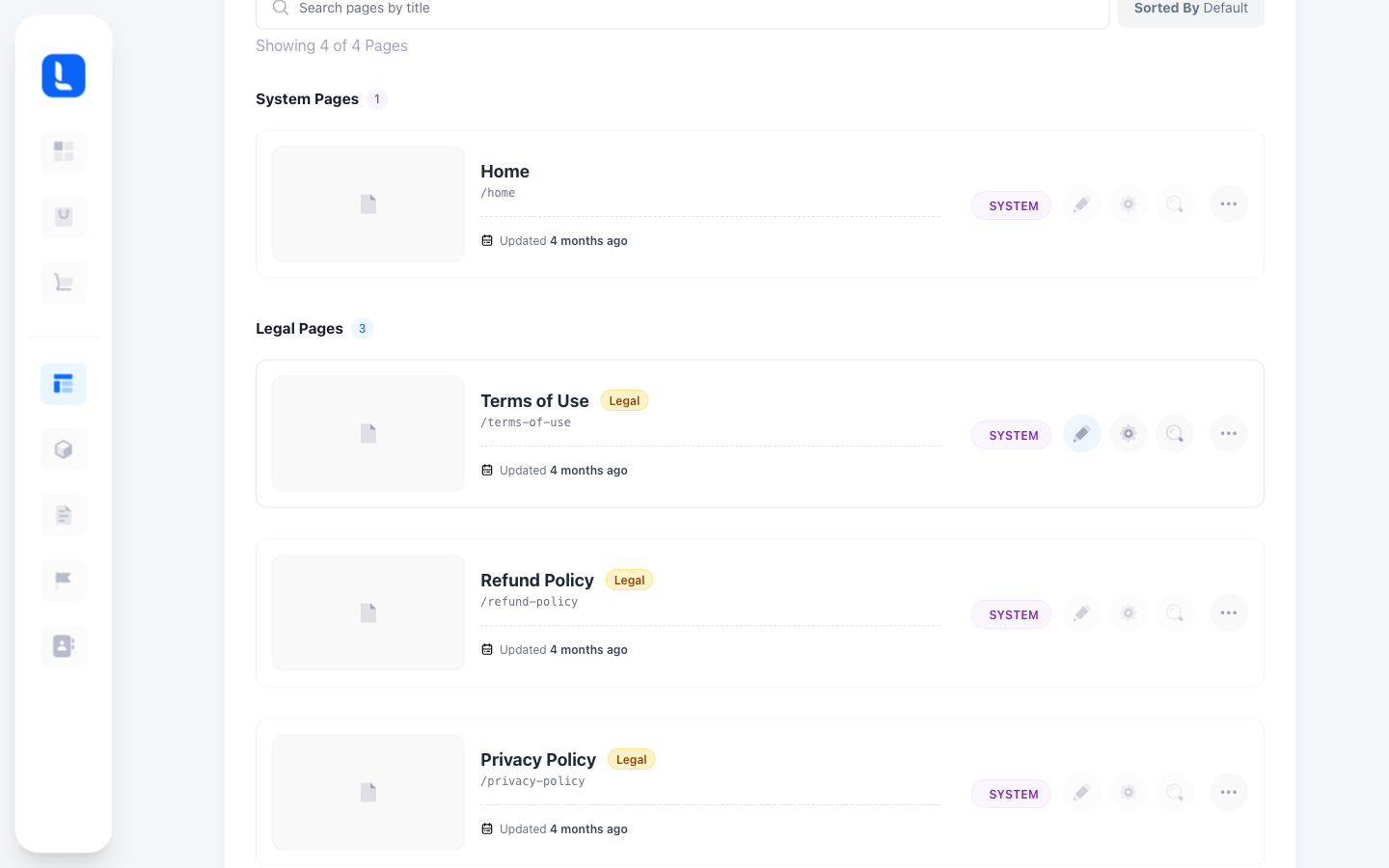
From your Dashboard, go to Website > Pages.
In the Legal Pages section, select Edit (pencil) on the page you want to update, Terms of Use, Privacy Policy, or Refund Policy.
Use the rich-text toolbar to format your changes: style dropdown, Bold, Italic, Underline, Strikethrough, text color, link, code, quote, and table.
Use the Variables dropdown to insert placeholders like {{lastUpdated}} and {{siteName}}. Learmo fills these in automatically rather than you typing the values yourself.
Select the Design (eye) icon to preview how your changes will look, or the expand icon for a larger editing view.
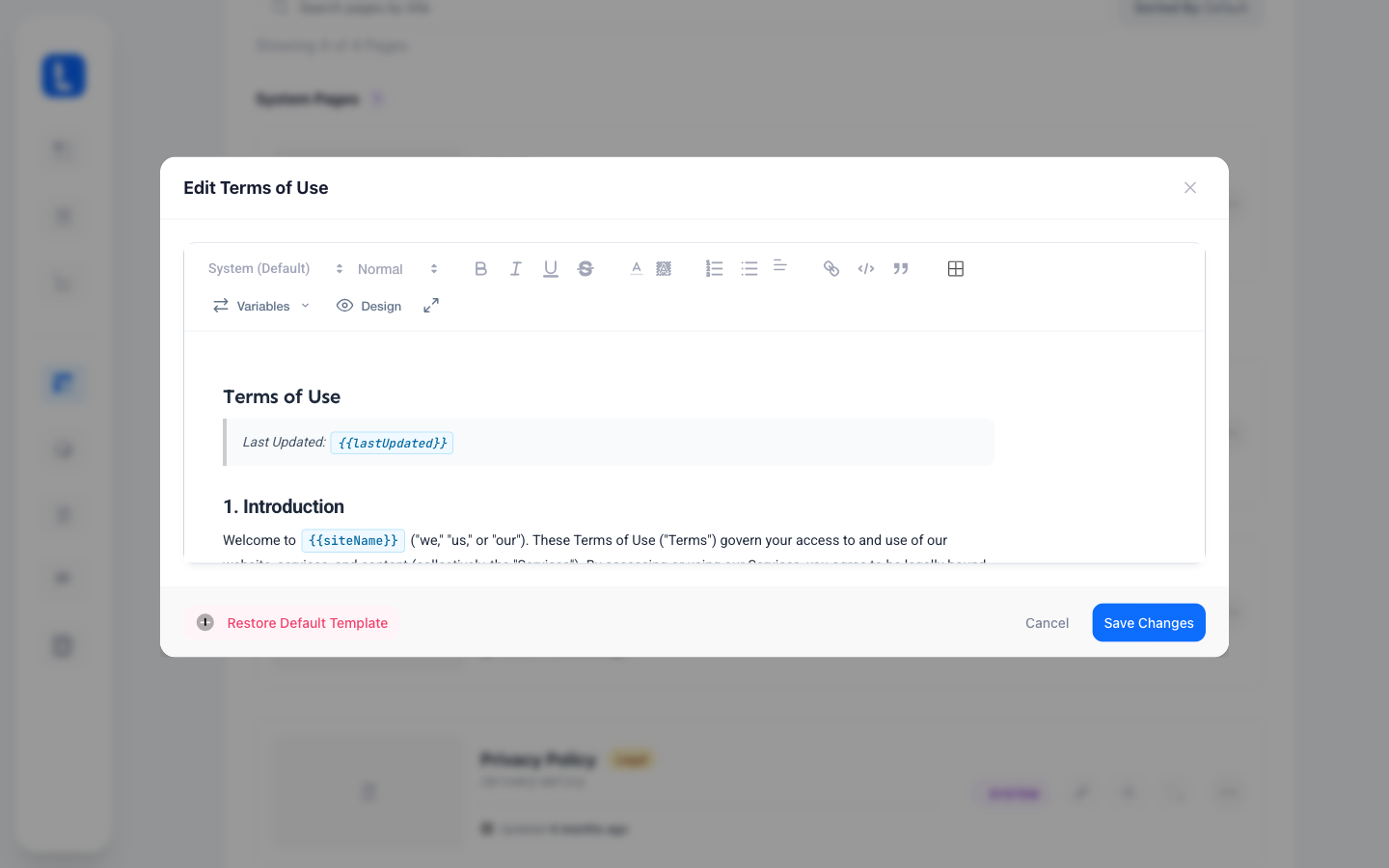
Select Save Changes to publish your edits, or Cancel to discard them. Since these are live pages on your Learning Hub, saved changes take effect right away, not just in your Dashboard preview.
Instead of the Edit icon, select Settings (gear) on the page to open Page Settings.
Under General Details, update the Page Title or URL Slug, both required. A live preview below shows the resulting page URL.
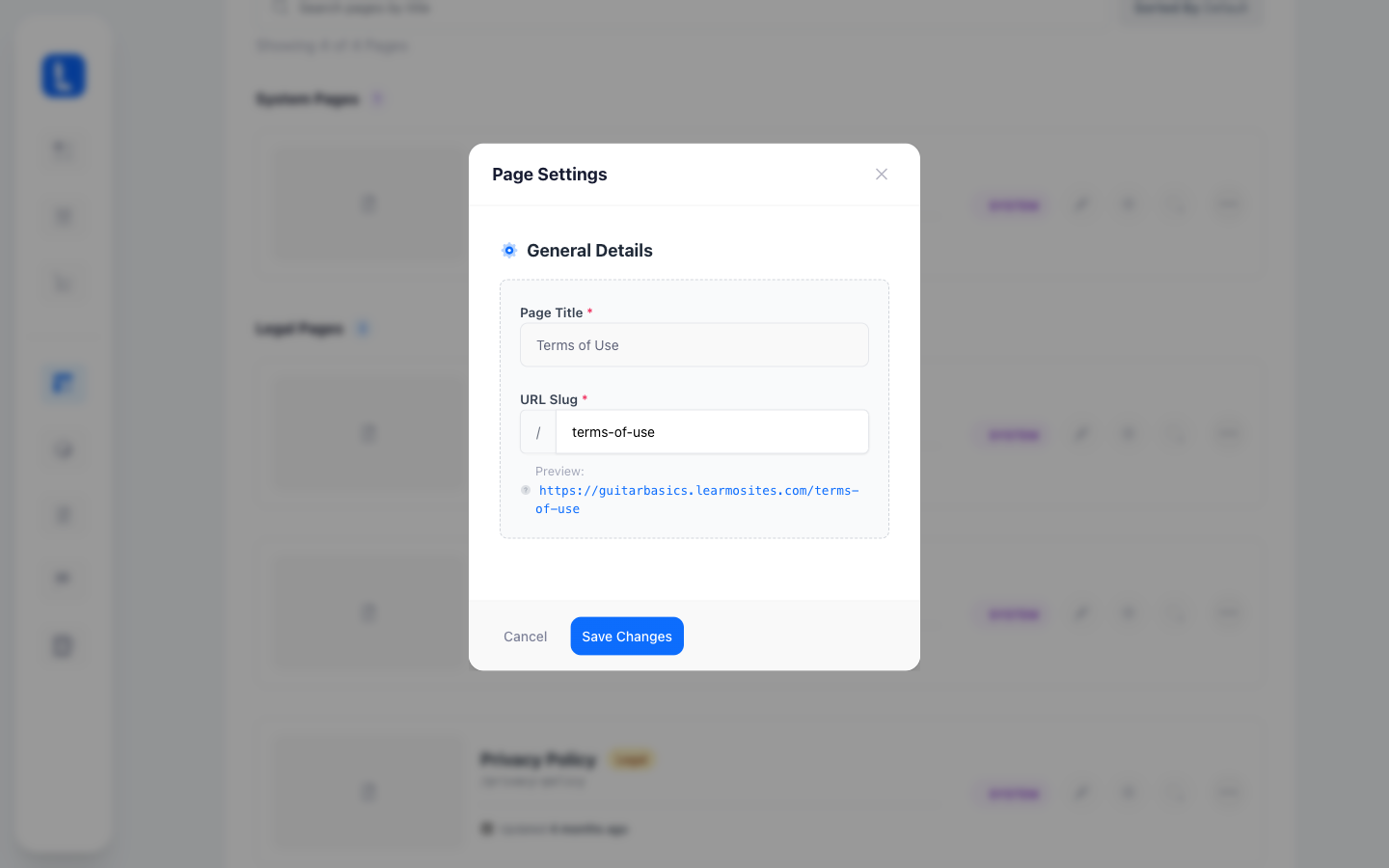
Select Save Changes to apply your updates, or Cancel to discard them. This updates the page's live title and URL on your Learning Hub right away, not just your Dashboard preview.
Select Restore Default Template to replace your current content with Learmo's original generated template. Select Restore on the confirmation prompt to proceed, or Cancel to back out.
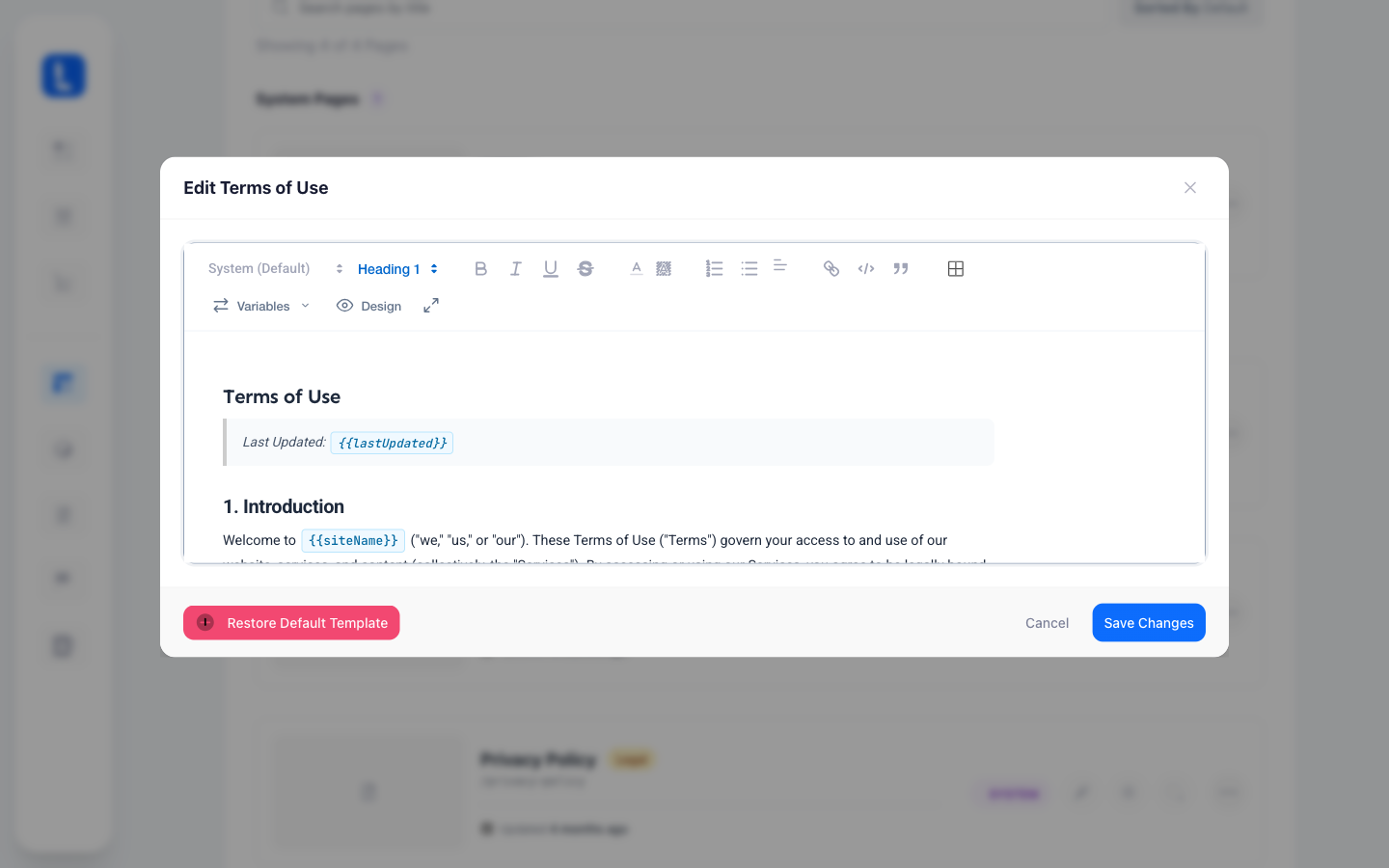
This action can't be undone, so review your edits before confirming. Restoring replaces the content shown in the editor; select Save Changes afterward to publish it to your live Learning Hub page.
[Screenshot: Restore Default Template confirmation prompt, showing the warning message and Cancel/Restore buttons.]