This article covers how to update your Learning Hub's Site Identity and Branding after the AI Onboarding Wizard, from your Dashboard.
From your Dashboard, go to Website > Site Identity.
Update your Website Title, required. This is shown in browser tabs and bookmarks.
Update your Tagline / Description, a brief description of your site's purpose.
Review your Primary Domain. This field is read-only here; select Manage to edit your subdomain under Website > Settings (Domains tab).
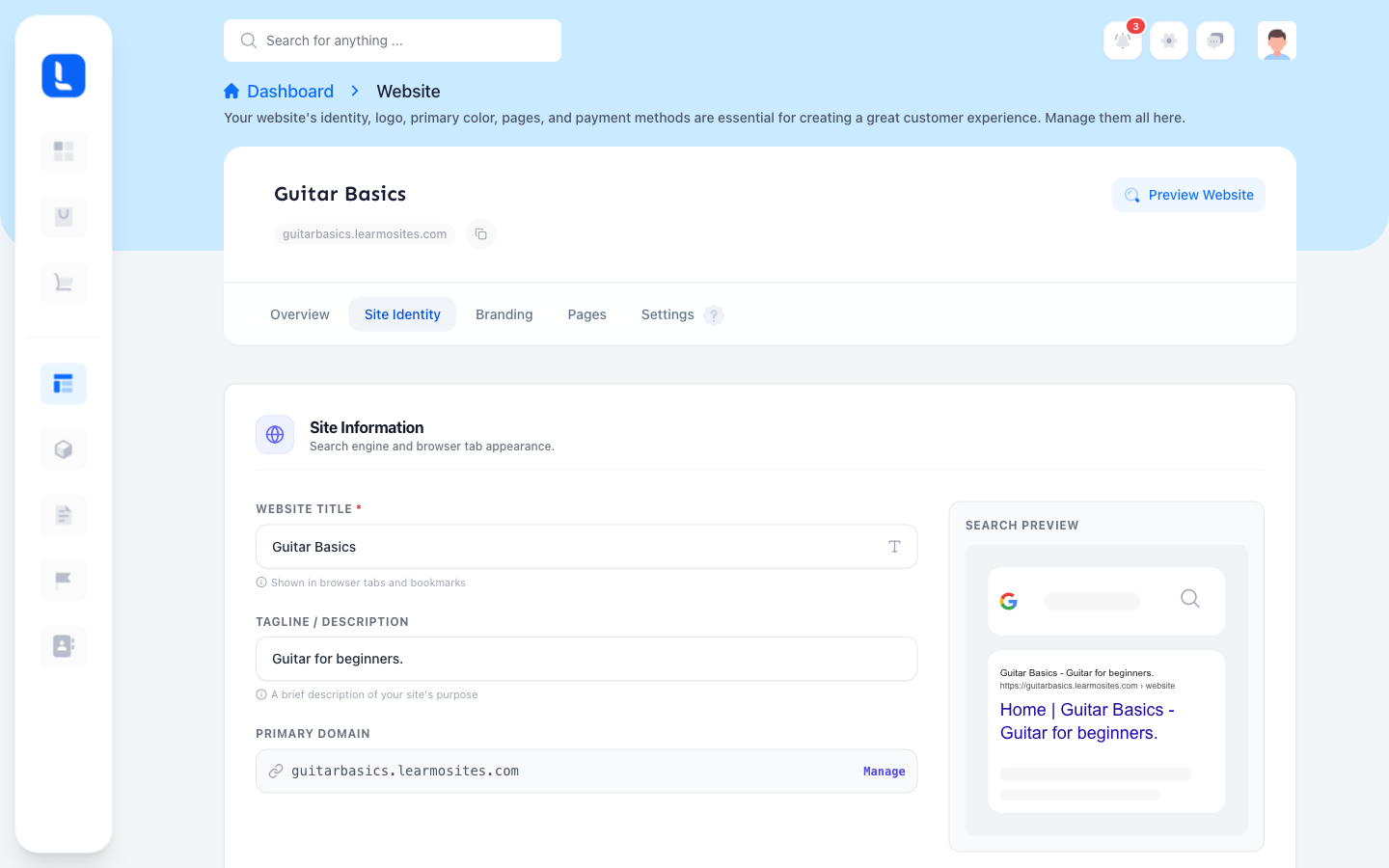
Learmo shows a live Search Preview below these fields, so you can see how your title and tagline will appear in search results before you save.
Select Save Changes to apply your updates. This updates the live Home Page and browser tab title on your Learning Hub right away, not just your Dashboard preview.
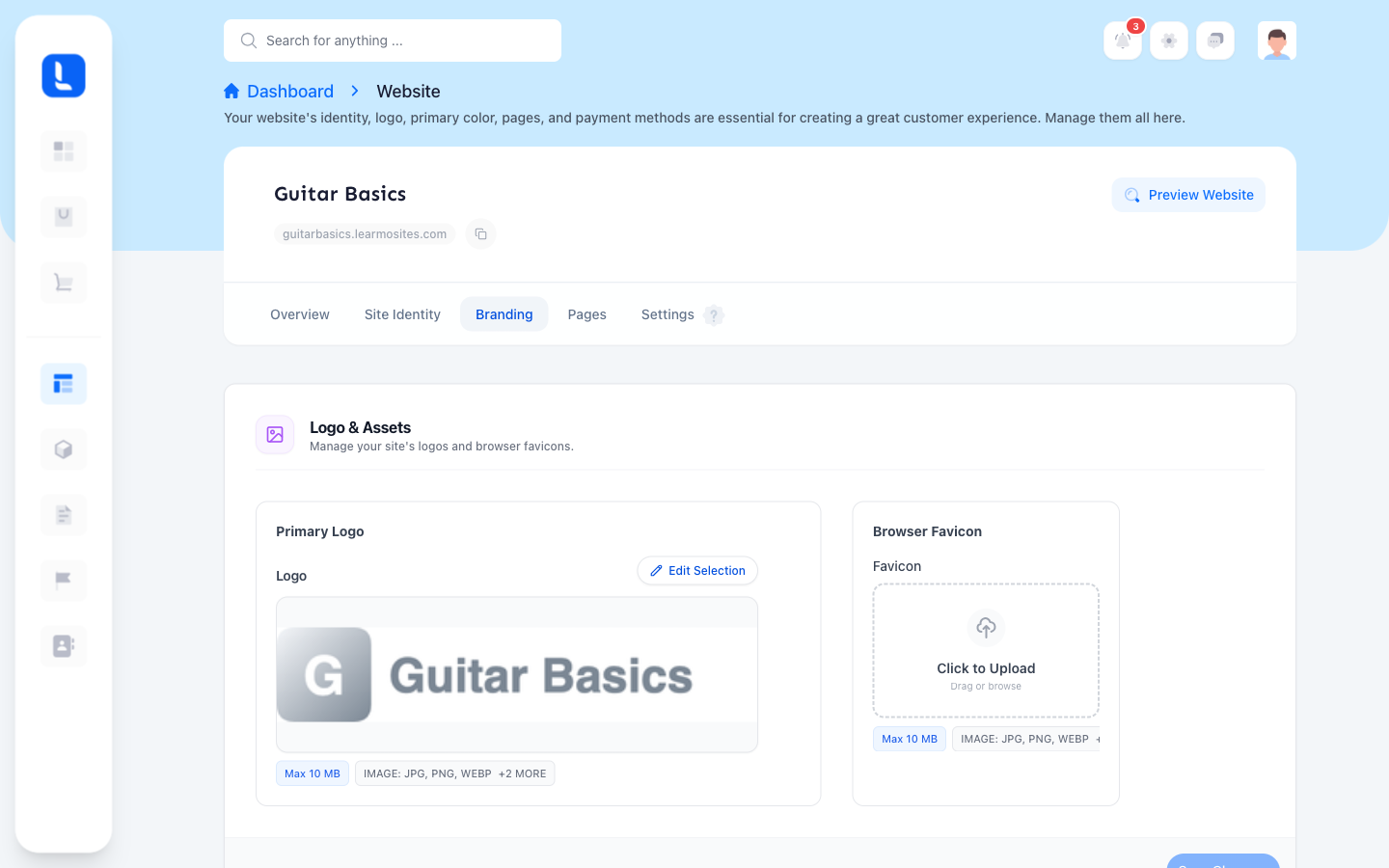
Go to Website > Branding.
Under Logo & Assets, review your Primary Logo. Select Edit Selection to preview, replace, or remove it. Accepts JPG, PNG, WEBP, and other formats, up to 10 MB.
Upload or replace your Browser Favicon the same way.
Under Brand Colors, select one of the named color palettes to set your Learning Hub's color scheme.
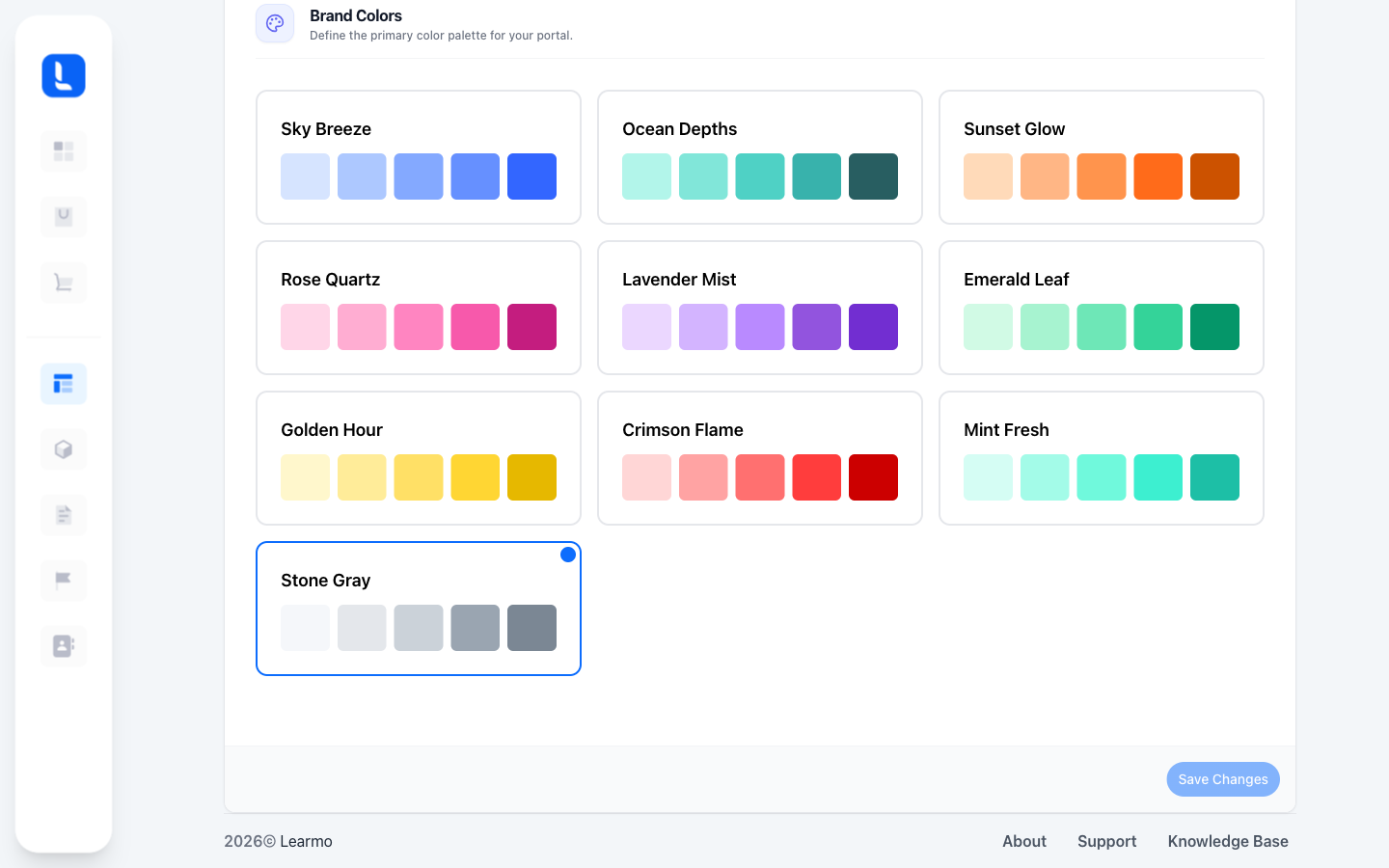
Logo & Assets and Brand Colors save separately. Select Save Changes on each card to apply your updates. Each save updates your live Learning Hub right away.