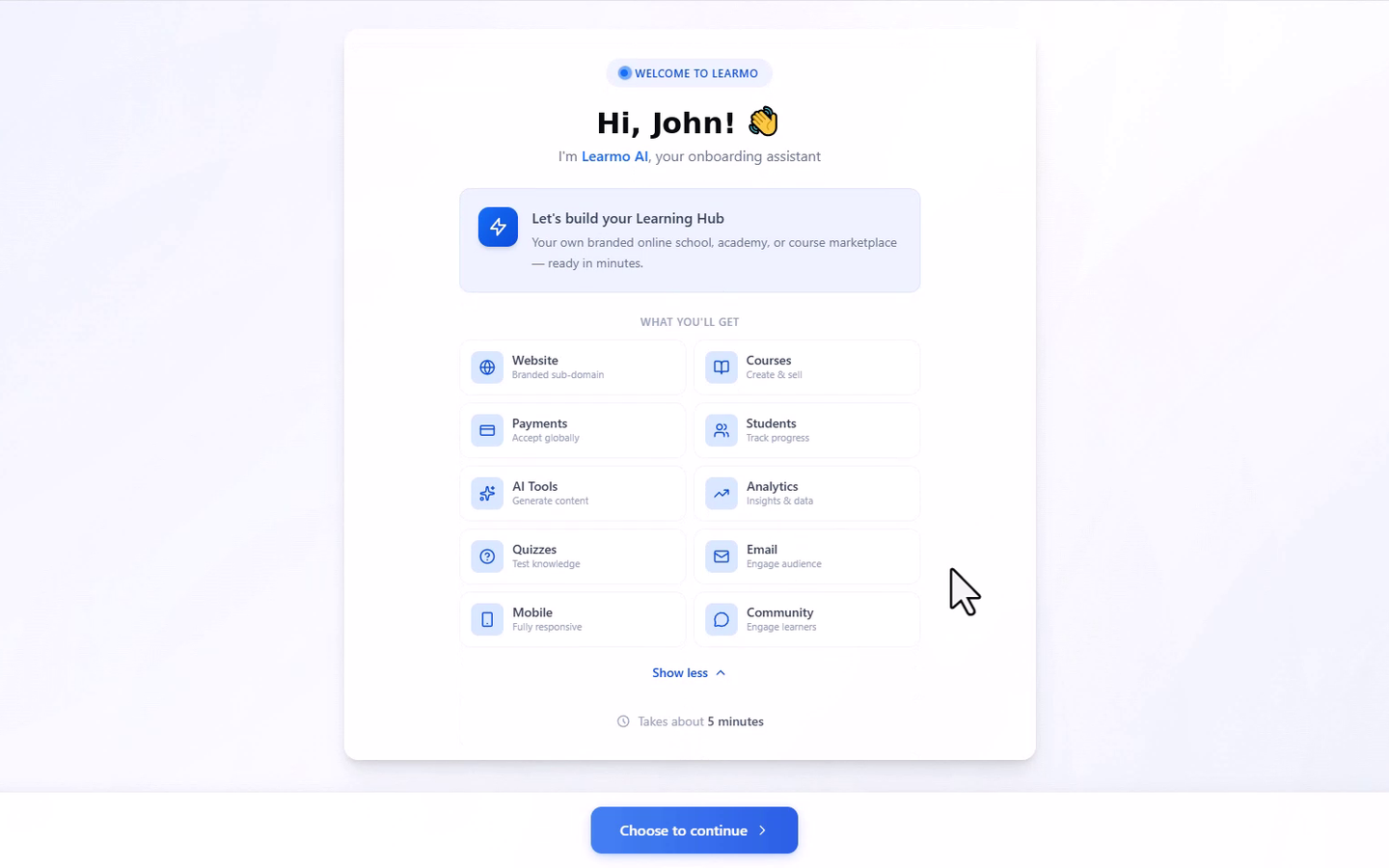
Note: The AI Onboarding Wizard runs before you ever see your Dashboard. It launches automatically right after you create your account, and only once it's done do you land in your Dashboard for the first time.
Learmo AI, your onboarding assistant, guides you through setting up your Learning Hub as soon as you create your account. The wizard takes about 5 minutes and walks you through six parts, in order.
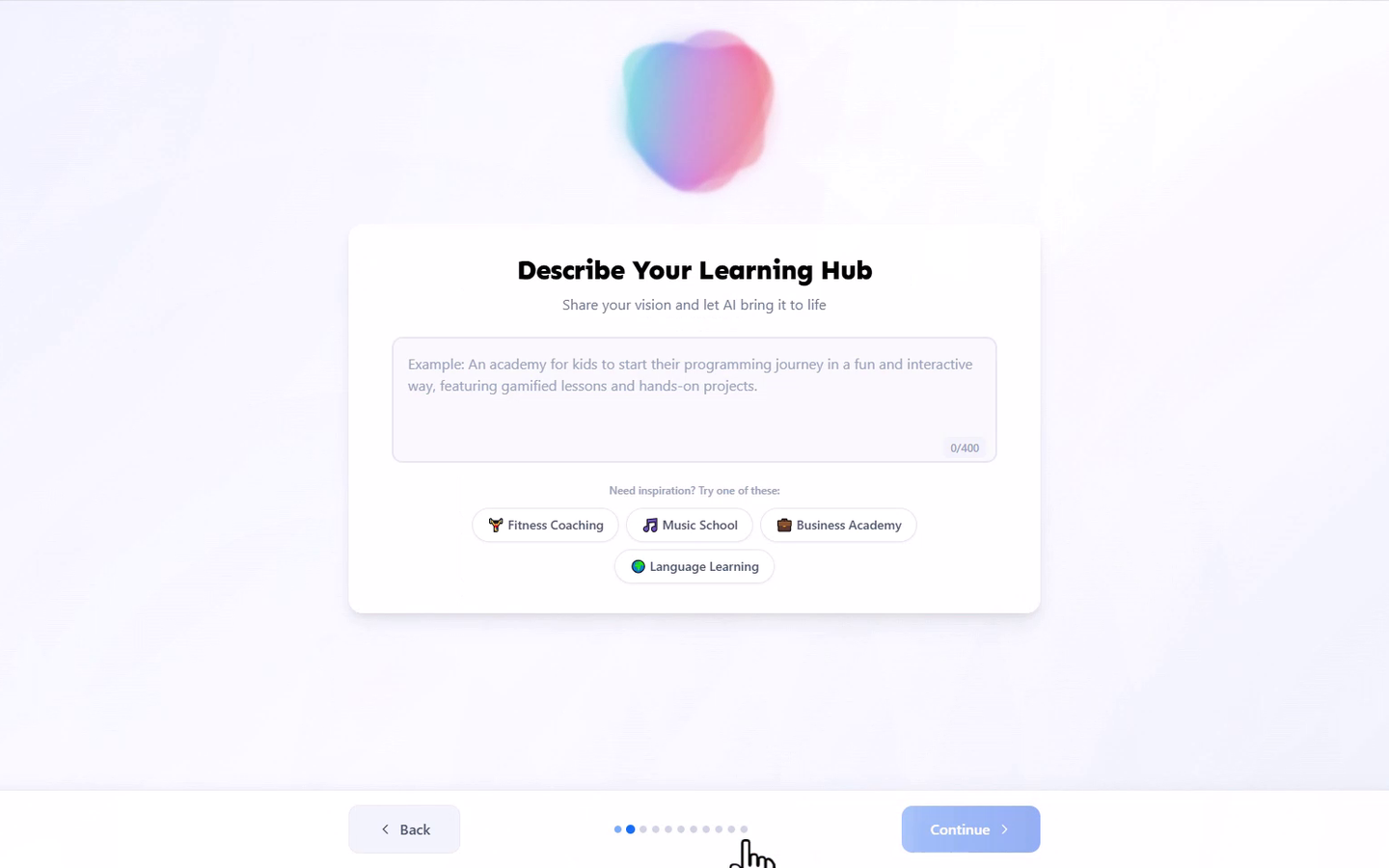
Your Hub Concept is the foundation the AI Onboarding Wizard builds everything else from. You'll provide:
A description of your Learning Hub - in your own words, or by selecting one of the suggested starting points if you're not sure where to begin. This description is what Learmo AI uses to generate everything else in this step, so it's worth a moment of thought rather than a quick placeholder. Naming the specific subject you teach, the format you teach it in, and who it's for gives Learmo AI more to work with than a general category on its own.
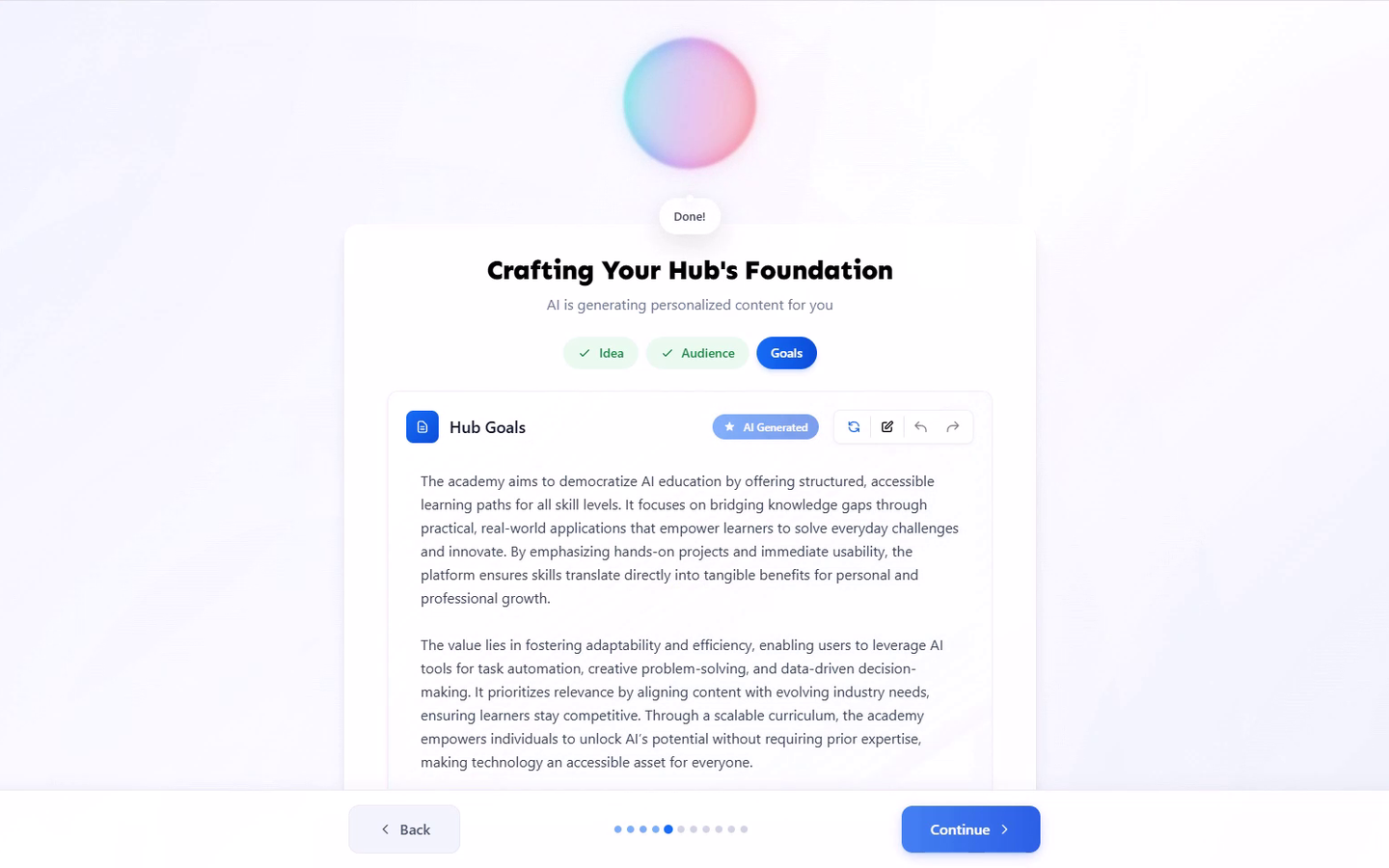
Once you provide this, the AI Onboarding Wizard generates a first draft of three fields, shown as tabs you review one at a time:
Idea - what your Learning Hub or course business is about.
Target Audience - who you're creating courses for.
Goals - what you want your students to achieve.
For each one, you can accept, edit, or retry the draft, and undo back to a previous version. These answers are reused later in the wizard to shape your Hub Identity, Instructor Bio, and Home Page content.
Covered in depth in Define Your Learning Hub Identity.
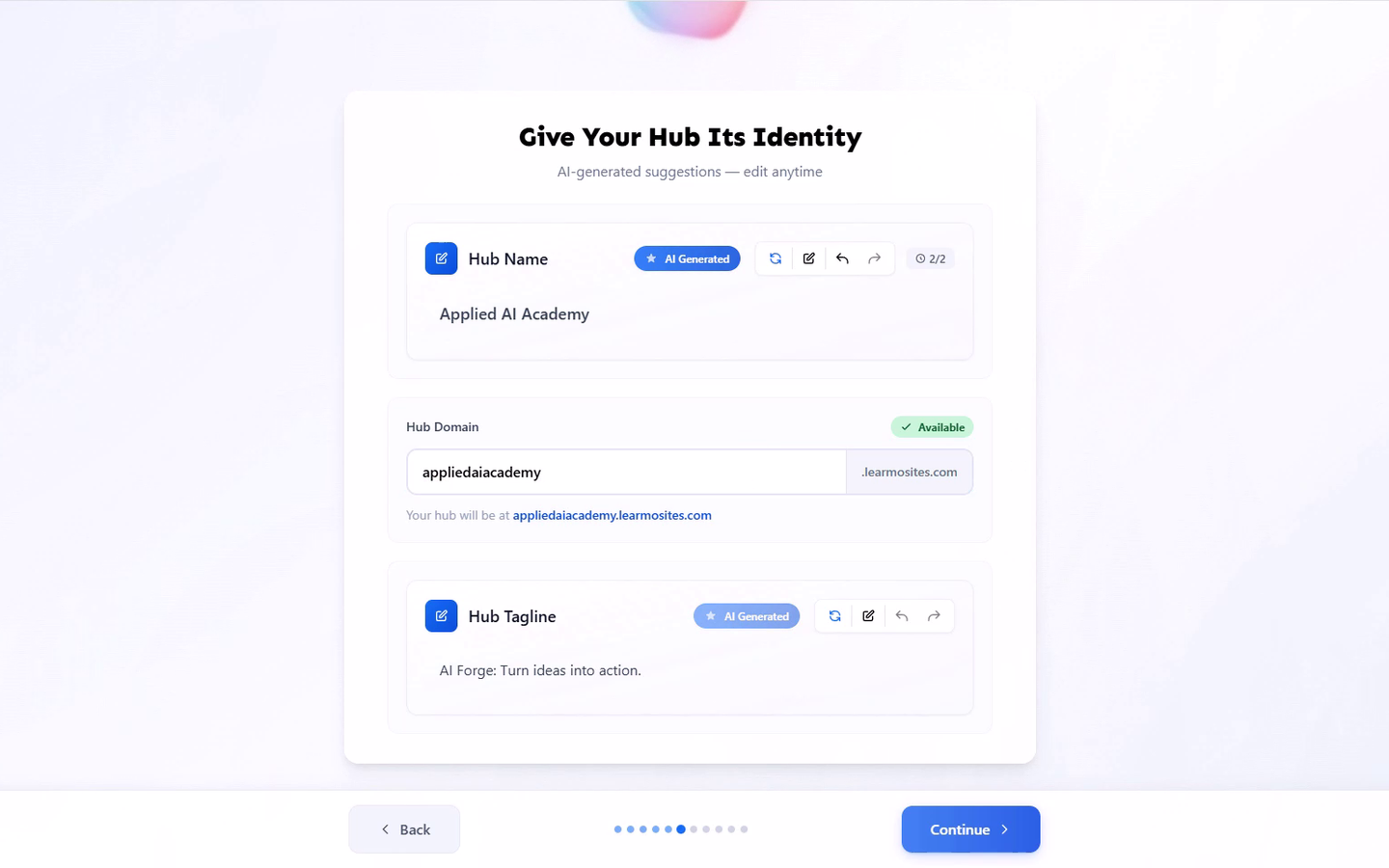
Your Hub Identity is what students see as your Learning Hub's name and address. You'll provide:
Hub Name - the name of your Learning Hub. Suggested by Learmo AI; edit anytime.
Hub Domain - your subdomain, in the form yourname.learmosites.com. Entered manually, not AI-generated.
Hub Tagline - a short, catchy description of your hub. Suggested by Learmo AI; edit anytime.
Once you provide all these, the AI Onboarding Wizard will:
Reserve your subdomain as your Learning Hub's live web address.
Carry your Hub Name and tagline through to your Home Page and other Learning Hub pages.
Name, subdomain, and tagline can all be changed later from your Dashboard. Subdomain setup is covered in depth in Initialize Your Learning Hub.
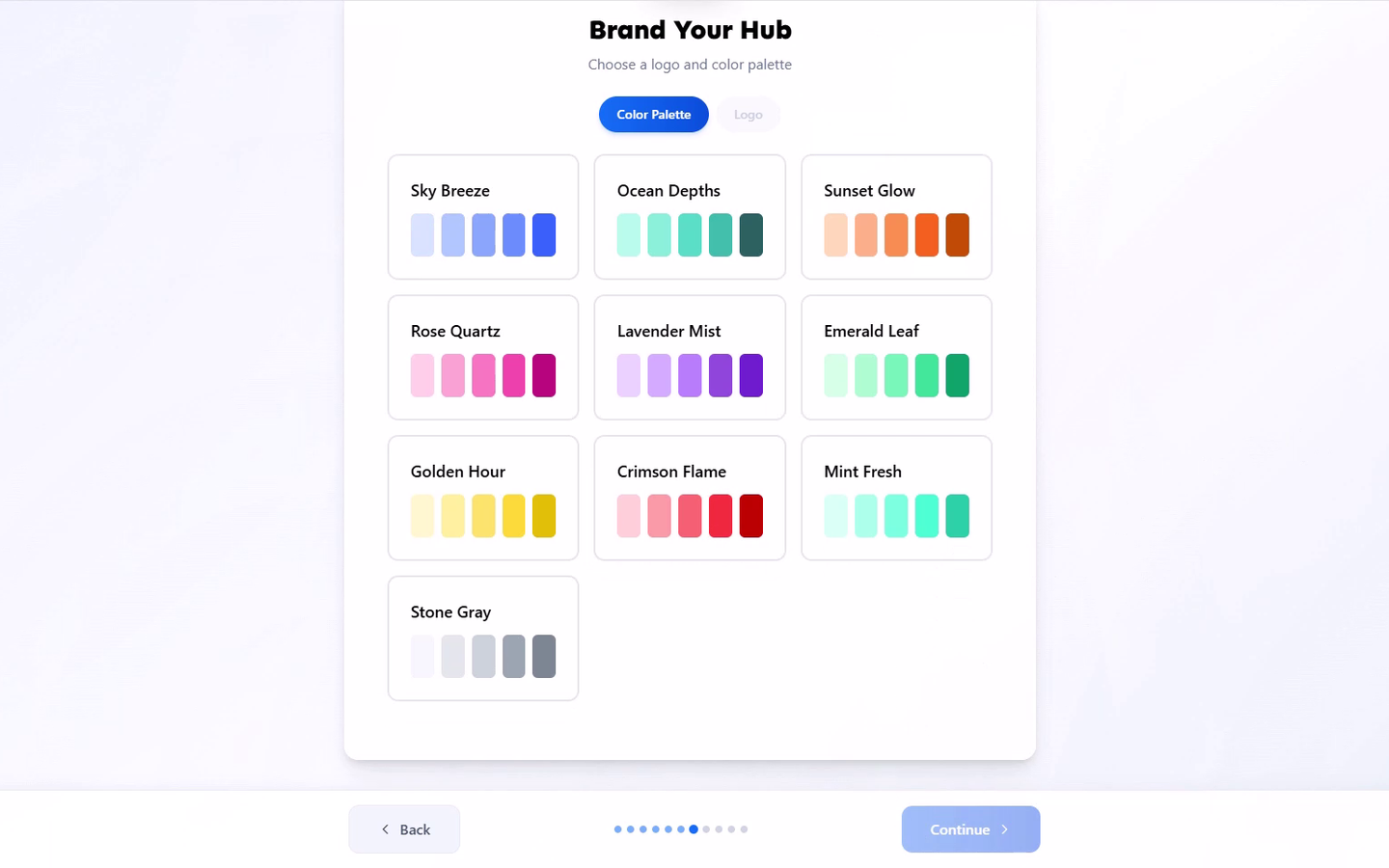
Your Branding sets the look of your Learning Hub. You'll provide:
Color Palette - choose from a set of named palette options. Selected manually, not AI-generated.
Logo - upload your own, or use an auto-generated placeholder.
Once you provide all these, the AI Onboarding Wizard will:
Apply your palette across your entire Learning Hub.
Apply your logo, or the placeholder if you skip this, so you're never blocked from continuing.
Both can be changed later, covered in Set Up Your Hub Branding and Instructor Profile.
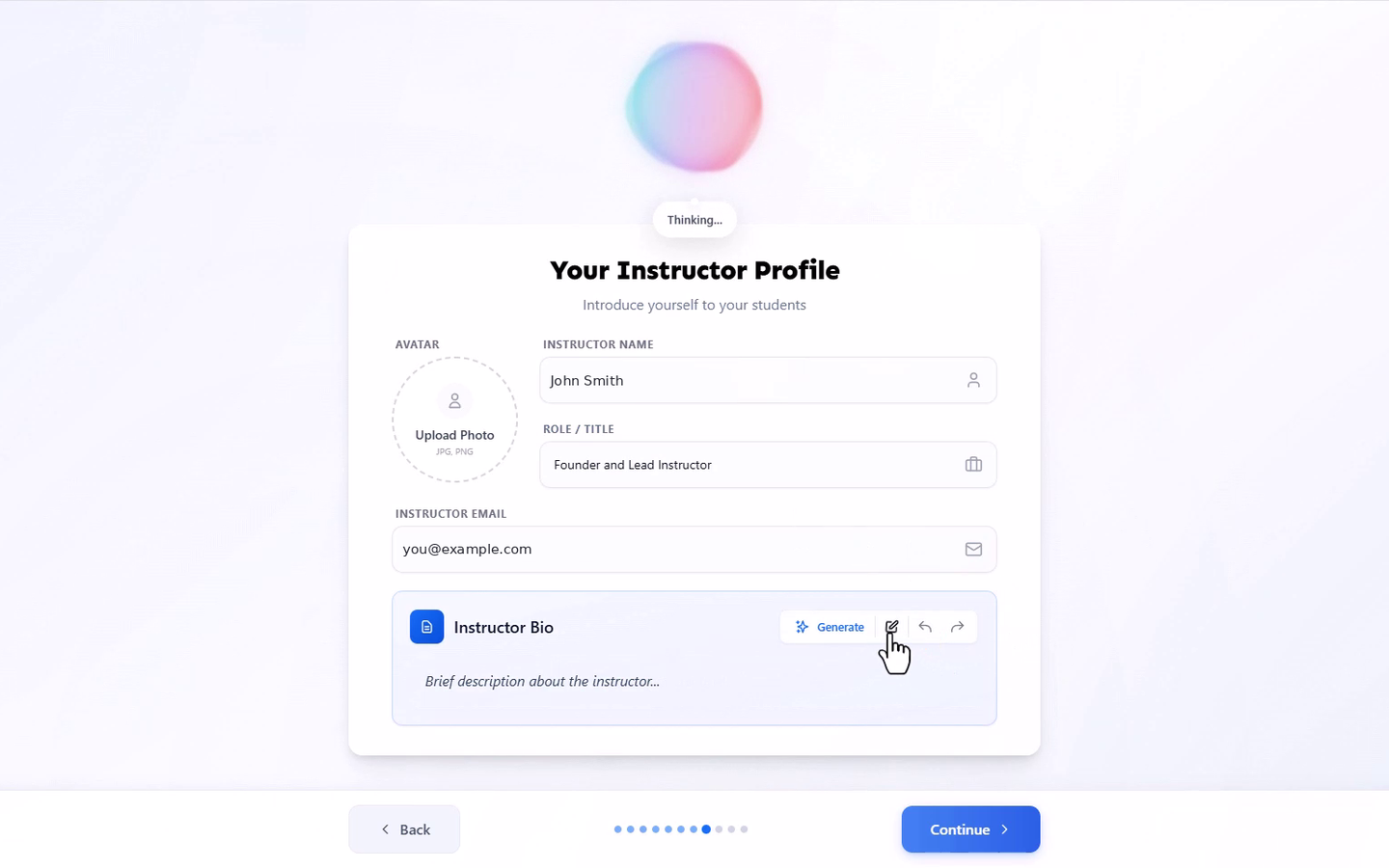
Your Instructor Profile is what students see when deciding whether to trust you as an instructor. You'll provide:
Avatar - a profile photo. Optional, entered manually.
Instructor Name - entered manually.
Role / Title - for example, Lead Instructor or Coach. Entered manually.
Instructor Email - entered manually.
Instructor Bio - a short description of you as an instructor. Can be AI-generated from your Hub Concept answers, or written yourself.
Once you provide all these, the AI Onboarding Wizard will:
Generate your Instructor Bio from your Hub Concept answers, which you can review and edit.
Publish your instructor profile as part of your Learning Hub.
Covered in depth in Set Up Your Hub Branding and Instructor Profile.
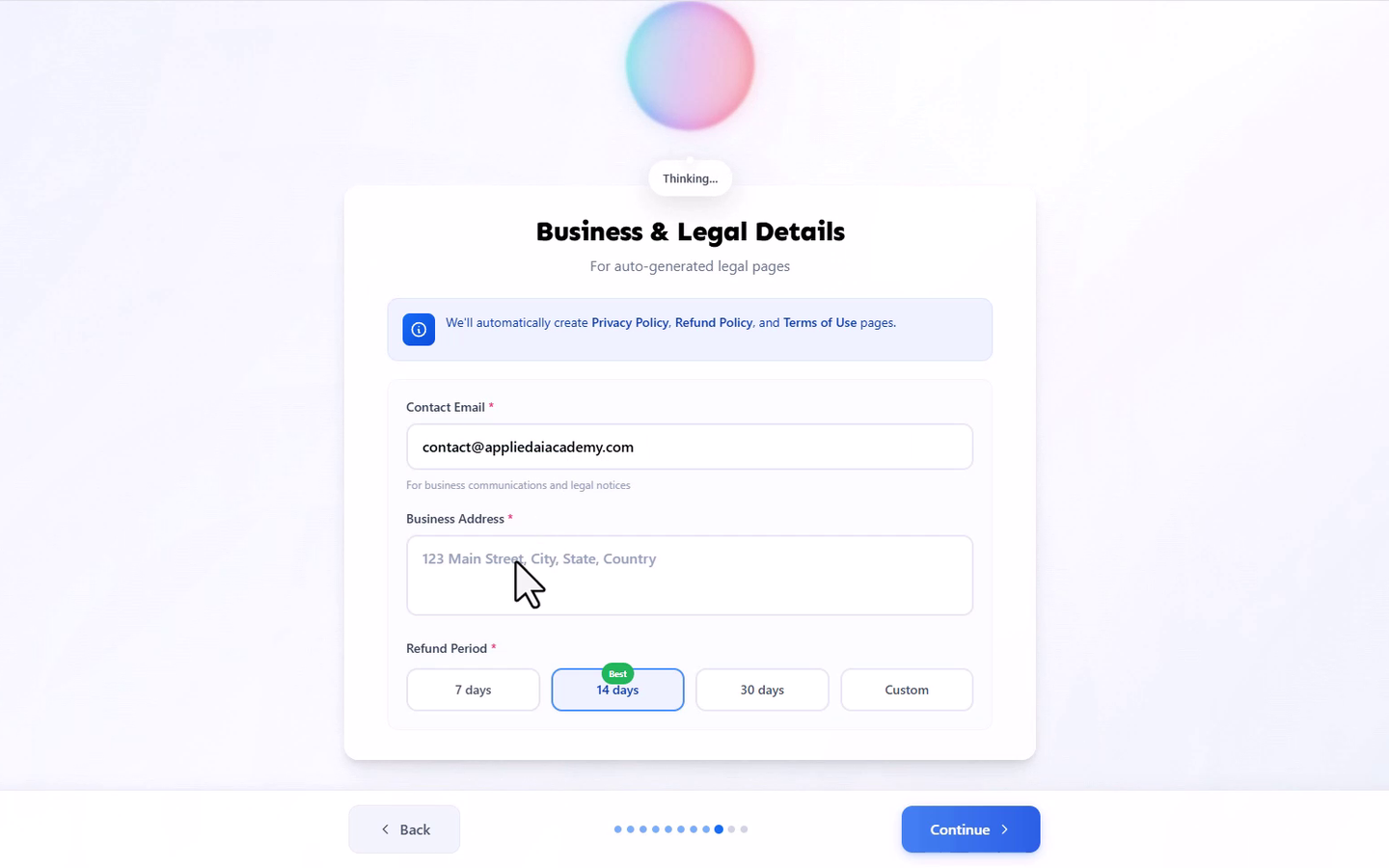
Your Business and Legal Details are required, and go live as real, published pages the moment you finish the wizard. You'll provide:
Contact Email - required, for business communications and legal notices.
Business Address - required. This can be your home address if you're operating your course business from home.
Refund Period - required. This is the refund window you're offering students on the courses you sell, not a refund policy for your Learmo subscription. Choose 7, 14, or 30 days, or set a custom period.
Once you provide all these, the AI Onboarding Wizard will:
Automatically generate your Privacy Policy, Refund Policy, and Terms of Use pages from what you entered.
Publish these as live pages on your Learning Hub, not placeholder text.
Covered in depth in Add Business and Legal Information.
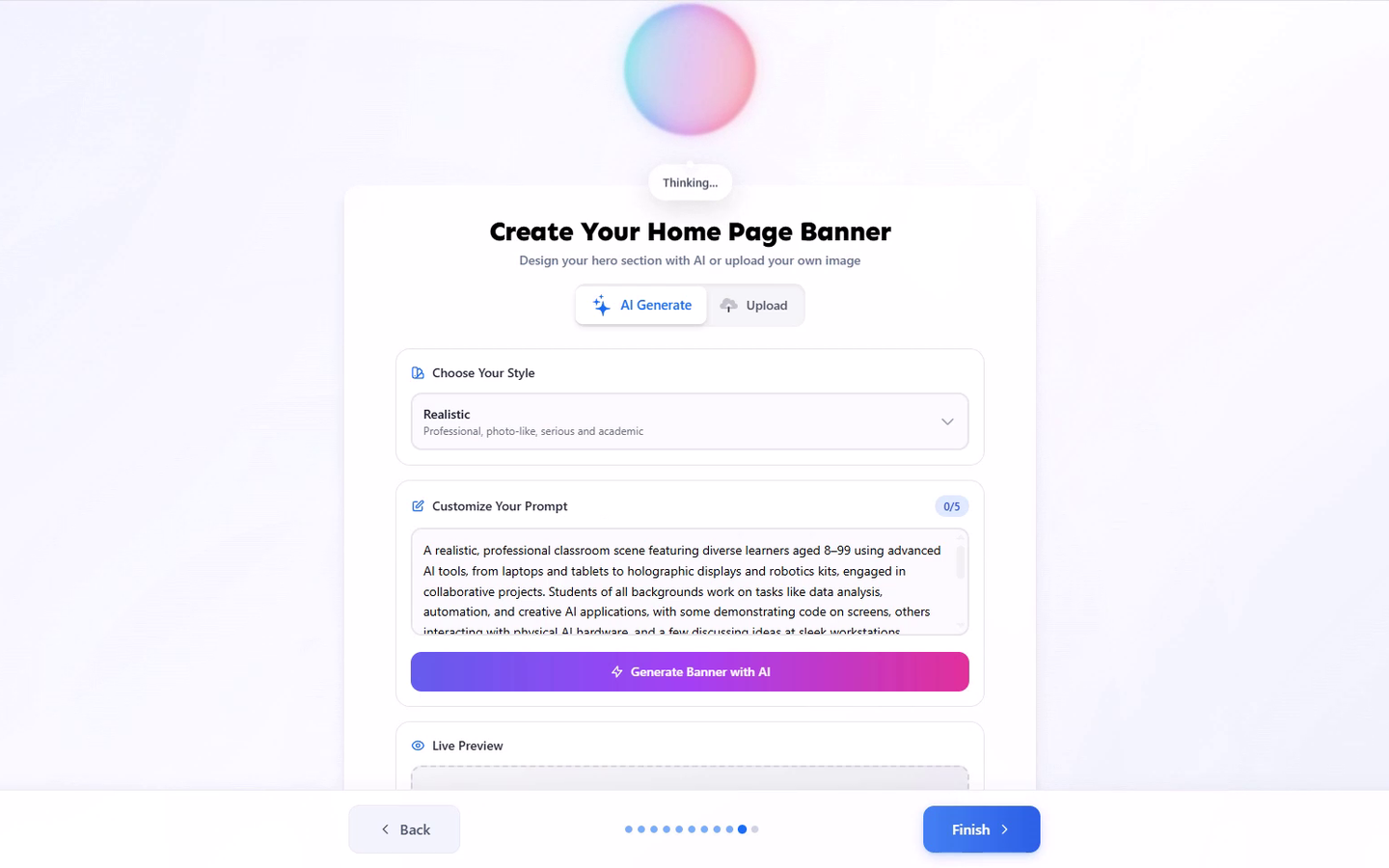
Your Home Page Banner is the hero image for your Home Page's Hero section, the large image visitors see at the very top of your Home Page before anything else. You'll provide:
Style and prompt - if generating with AI, choose a style (for example, Realistic) and customize the prompt describing your hero image.
Image - if uploading your own hero image instead.
Once you provide all these, the AI Onboarding Wizard will:
Generate your hero image with AI, showing a live preview as you adjust the style and prompt, or apply the image you uploaded.
Set the result as the hero image at the top of your Home Page.
Covered in depth in Set Up Your Hub Branding and Instructor Profile.
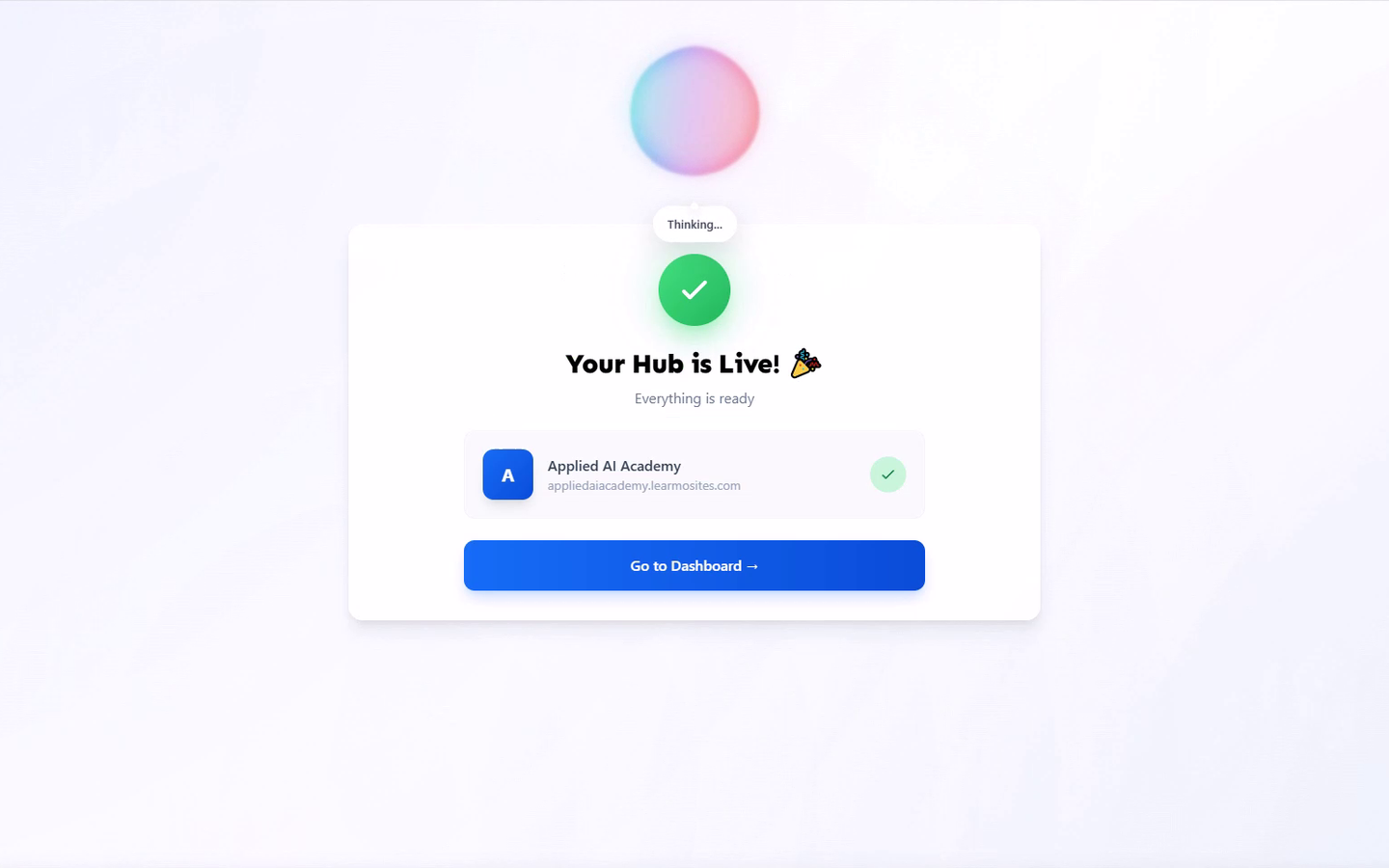
Once you finish the wizard, Learmo uses everything you entered to set up your domain, build your Home Page, and publish your Learning Hub. You land on a "Your Hub is Live" confirmation showing your Learning Hub's name and domain, then go straight to your Dashboard.