This article covers the first two parts of the AI Onboarding Wizard: your Hub Concept (idea, target audience, and goals) and your Hub Identity (name, subdomain, and tagline).
Your Hub Concept is the foundation the rest of the wizard builds from. Learmo AI reuses these answers later to shape your Hub Identity, Instructor Bio, and Home Page content.
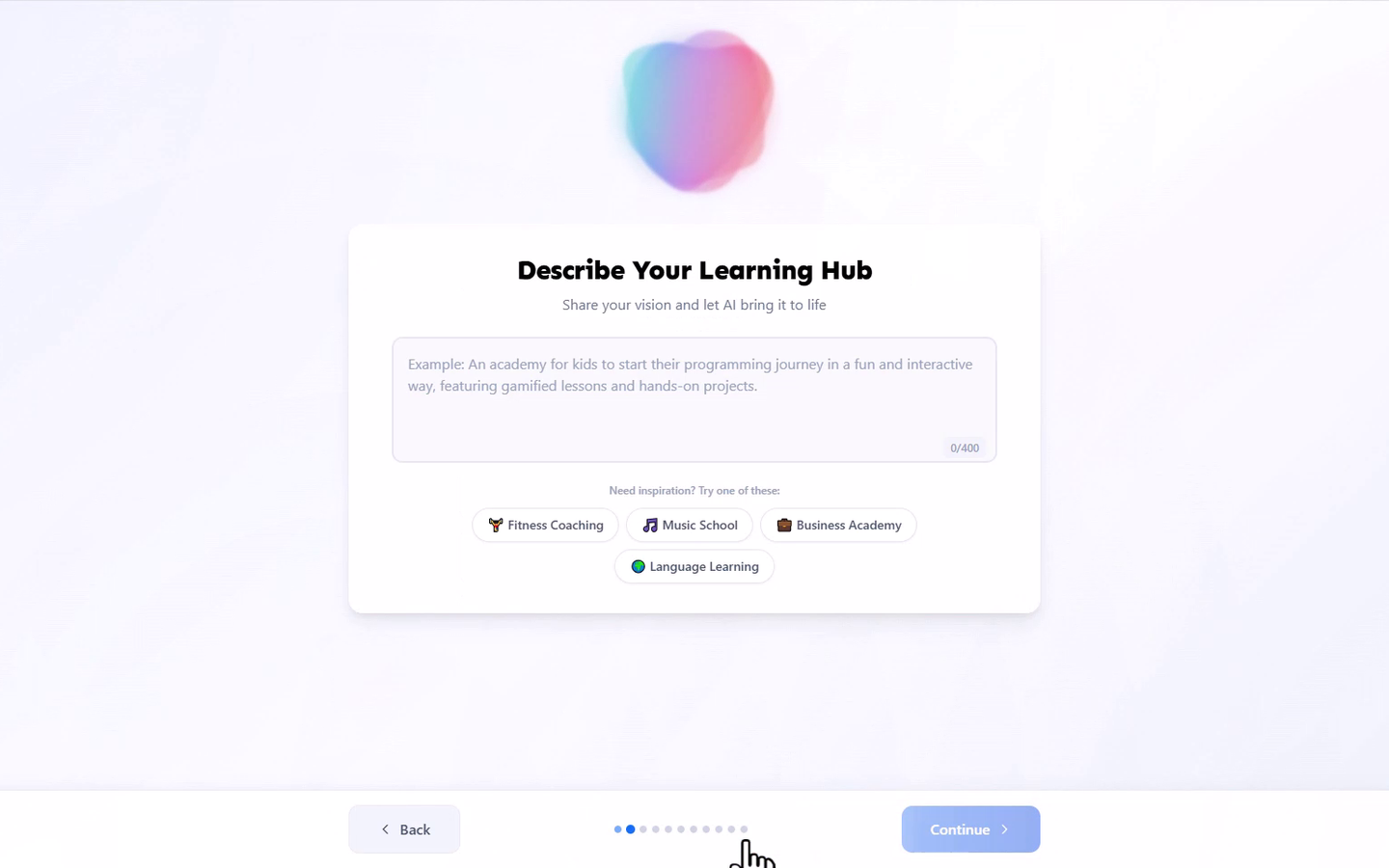
On the "Describe Your Learning Hub" screen, describe your Learning Hub in your own words, in up to 400 characters. If you're not sure where to start, select one of the suggested starting points, such as Fitness Coaching or Language Learning, to fill in the field for you.
Name the specific subject and format you teach, not just the general category. "Yoga" describes a category; "an academy for busy professionals to build a 15-minute daily vinyasa routine, with gamified lessons and hands-on practice" describes an idea Learmo AI can work with. What you write here is what Learmo AI uses to generate the drafts in the next step, so the more specific your input, the more specific those drafts will be.
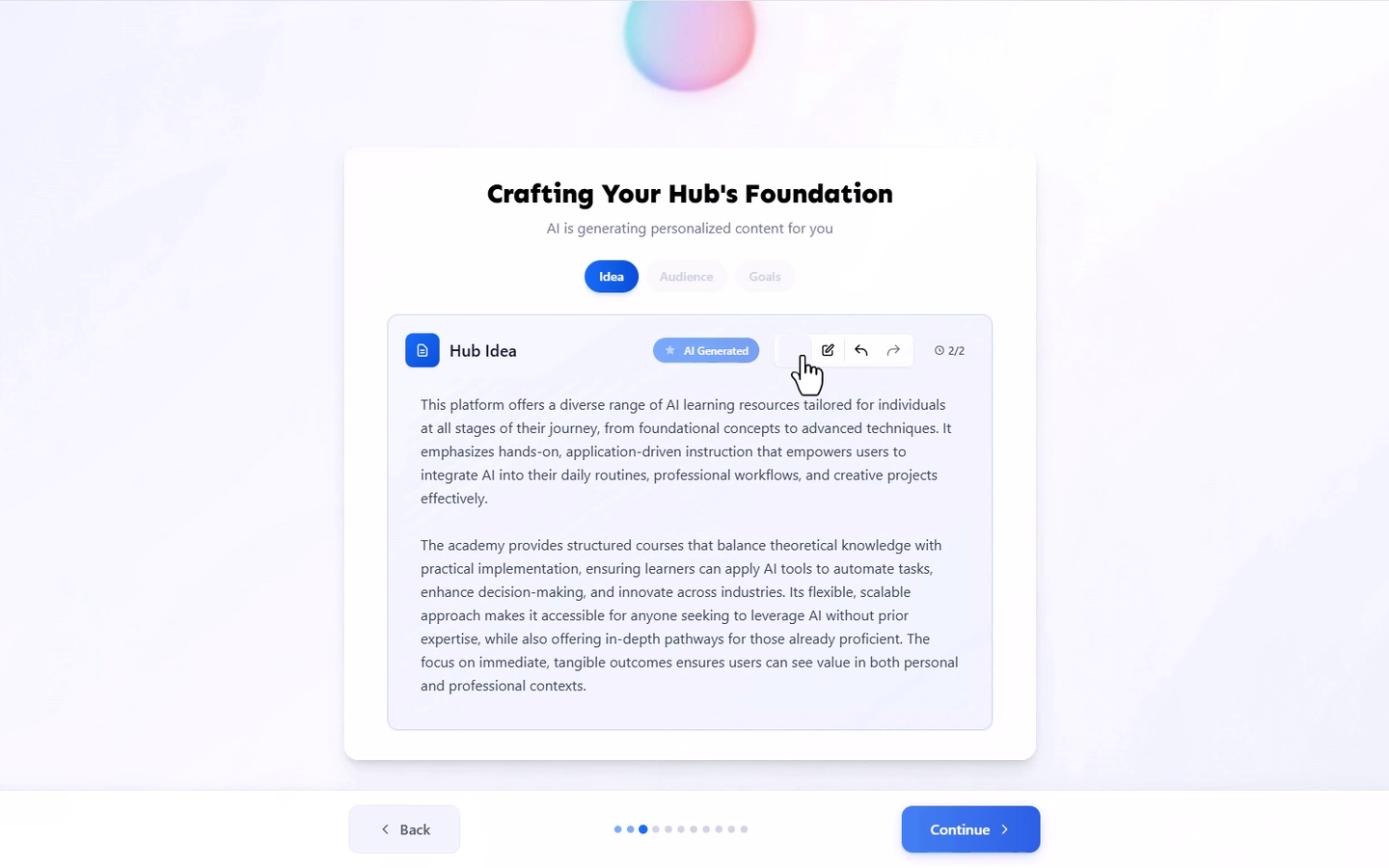
Learmo AI generates a first draft of three fields from your description, shown as tabs on the "Crafting Your Hub's Foundation" screen. All three are suggested by Learmo AI; you can edit any of them. Review each one in turn.
Idea describes what your Learning Hub or course business is about.
Target Audience describes who you're creating courses for. A useful draft names an experience level and what that audience is trying to solve, not just a demographic. "Adults" is a demographic; "working professionals with no prior yoga experience who want a routine they can do at home" tells Learmo AI who to write for.
Goals describes what you want your students to achieve. A useful draft states an outcome a student walks away with, ideally something they could measure or demonstrate. "Learn yoga" is open-ended; "build a consistent home practice they can sustain after 30 days" gives Learmo AI a concrete result to write toward.
For each field, select Accept to keep the generated draft, Edit to change it directly, or Retry to generate a new draft from your original description. Select Undo to revert to a previous draft. If a draft feels generic, it usually means the description it was generated from was generic. Go back and add the specifics above, then retry.
Your Hub Identity is what students see as your Learning Hub's name and address.
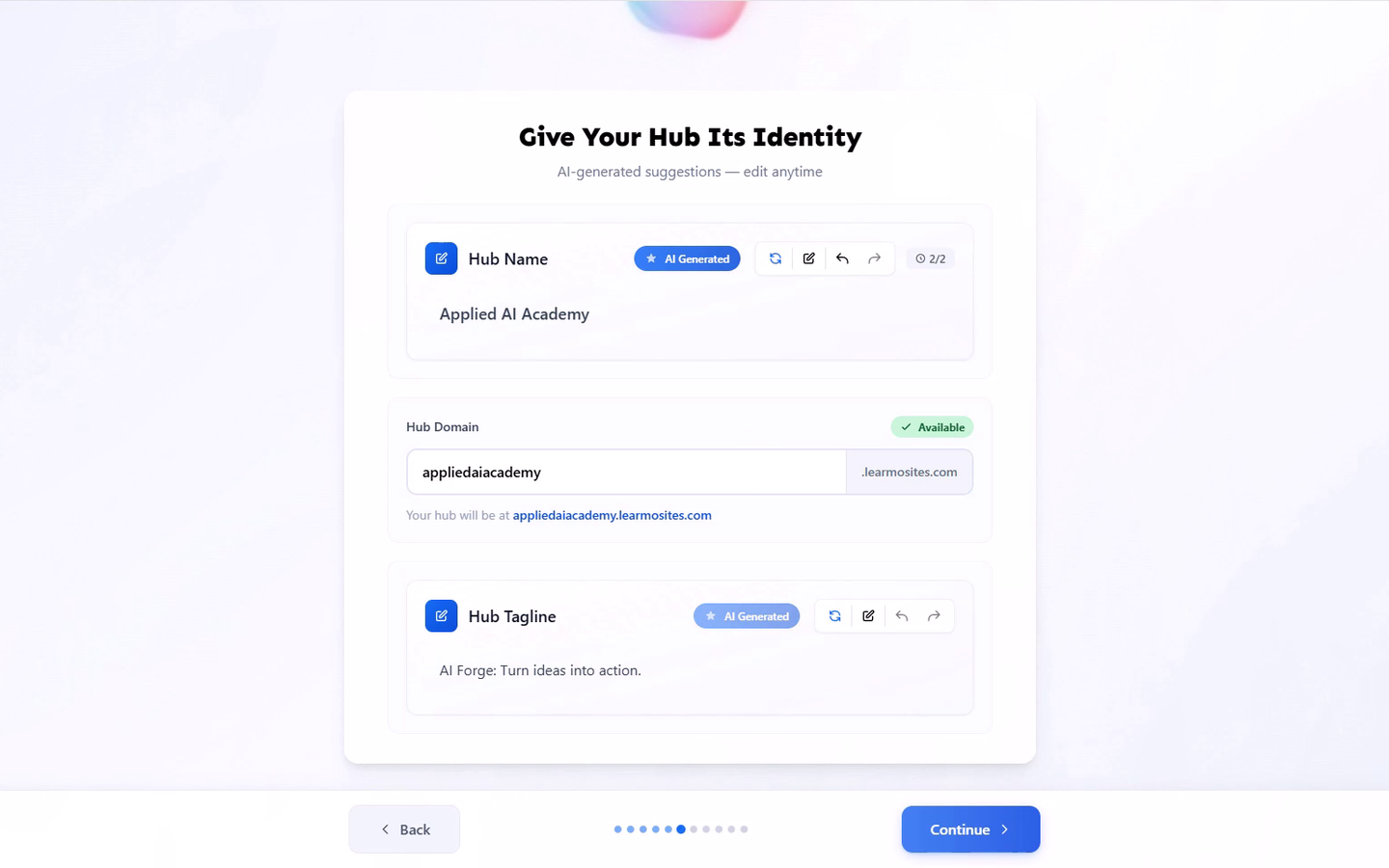
On the "Give Your Hub Its Identity" screen, review your Hub Name. This is suggested by Learmo AI; edit anytime.
This is the name students see, not necessarily your personal or business name. A name built from your Hub Concept, like the subject you teach or the transformation you offer, tends to be clearer to a student than a generic brand name they have to learn separately.
Enter your Hub Domain, the subdomain portion of your Learning Hub's web address, in the form yourname.learmosites.com. This is entered manually, not AI-generated.
Since this becomes part of a web address, keep it short and easy to say out loud, since students may need to type or repeat it. Matching it closely to your Hub Name makes the two easier to associate.
Review your Hub Tagline, a short, catchy description of your hub. This is suggested by Learmo AI; edit anytime.
A tagline works best when it states what a student gets, not just how your hub sounds. "Practical routines for people with real schedules" tells a student what to expect; "Transform your life" does not.
Once you finish this step, your subdomain becomes your Learning Hub's live web address as soon as you complete the wizard. Your Hub Name and tagline carry through to your Home Page and other Learning Hub pages.
Hub Name, subdomain, and tagline can all be changed later from your Dashboard.