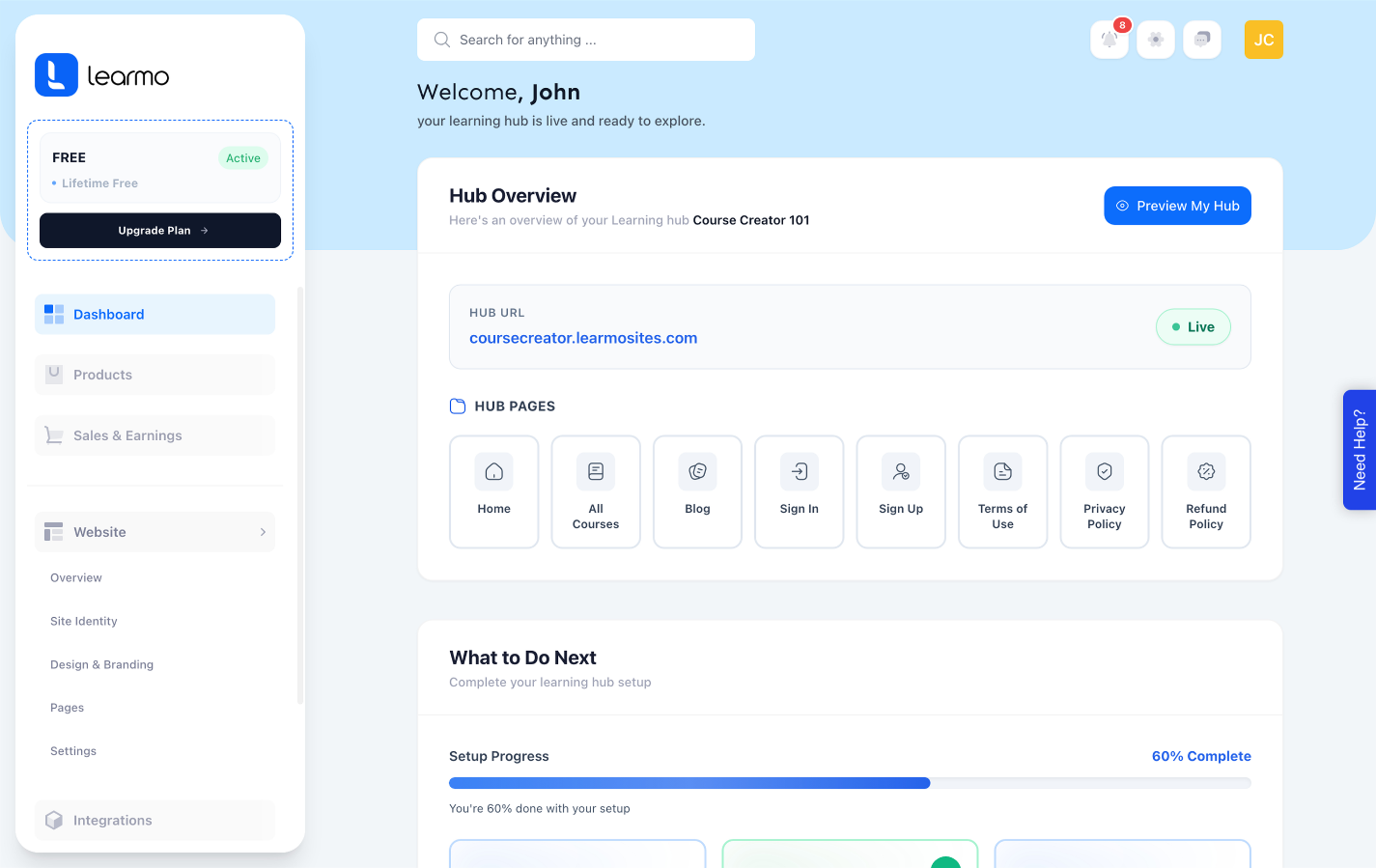
This article covers what happens once you finish the AI Onboarding Wizard: your subdomain, your Home Page, and your Dashboard access.
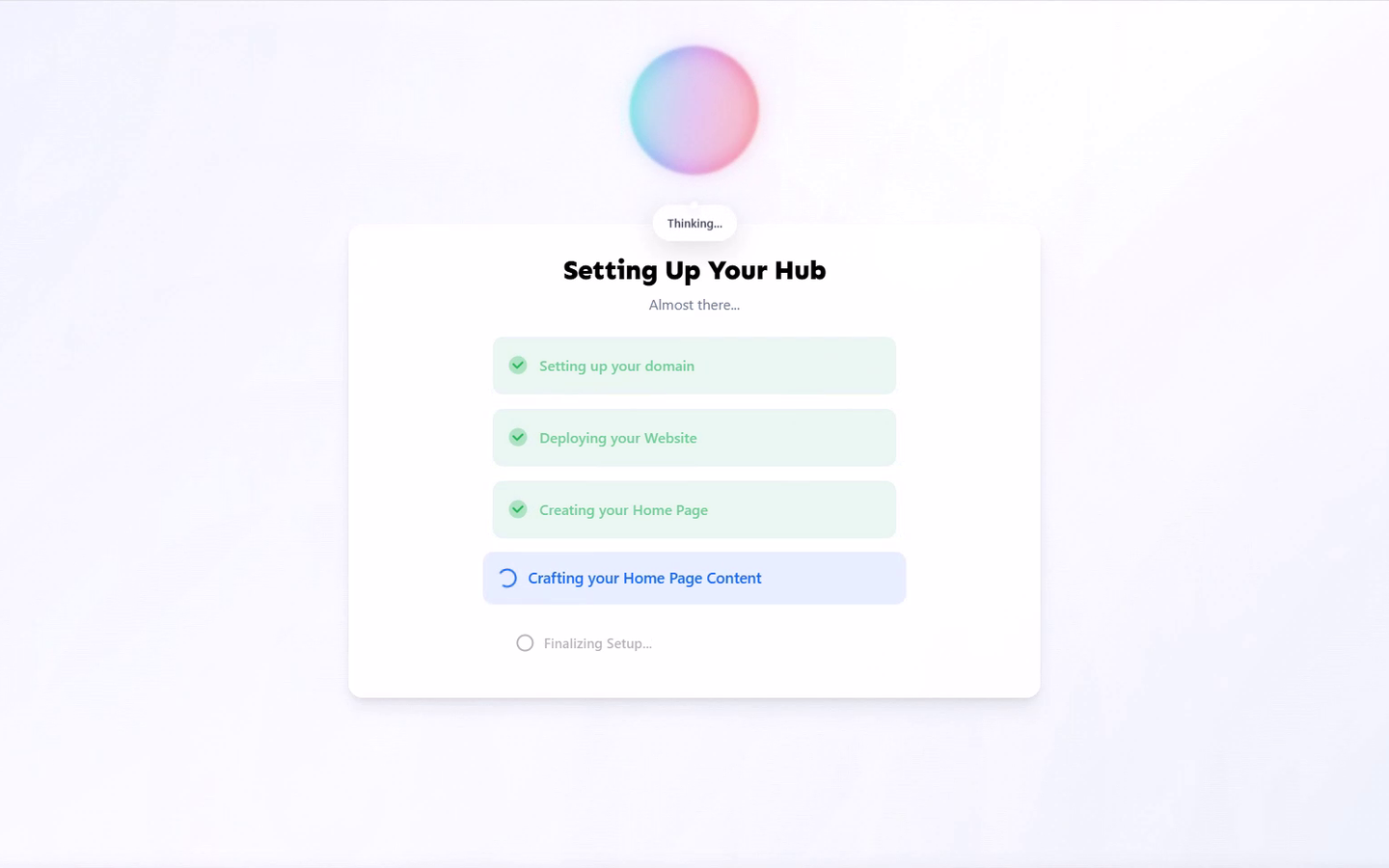
After you complete the last step of the wizard, Learmo shows a progress screen while it sets up your Learning Hub. Behind this screen, Learmo is reserving your subdomain, assembling your Home Page from your Hub Identity and branding, and publishing your legal pages, so that everything you entered across the previous steps becomes one working Learning Hub rather than separate pieces. There's nothing for you to do here except wait for it to finish.
Once setup finishes, you land on the "Your Hub is Live!" confirmation screen, showing your Learning Hub's name and live domain.
Select Go to Dashboard to continue.
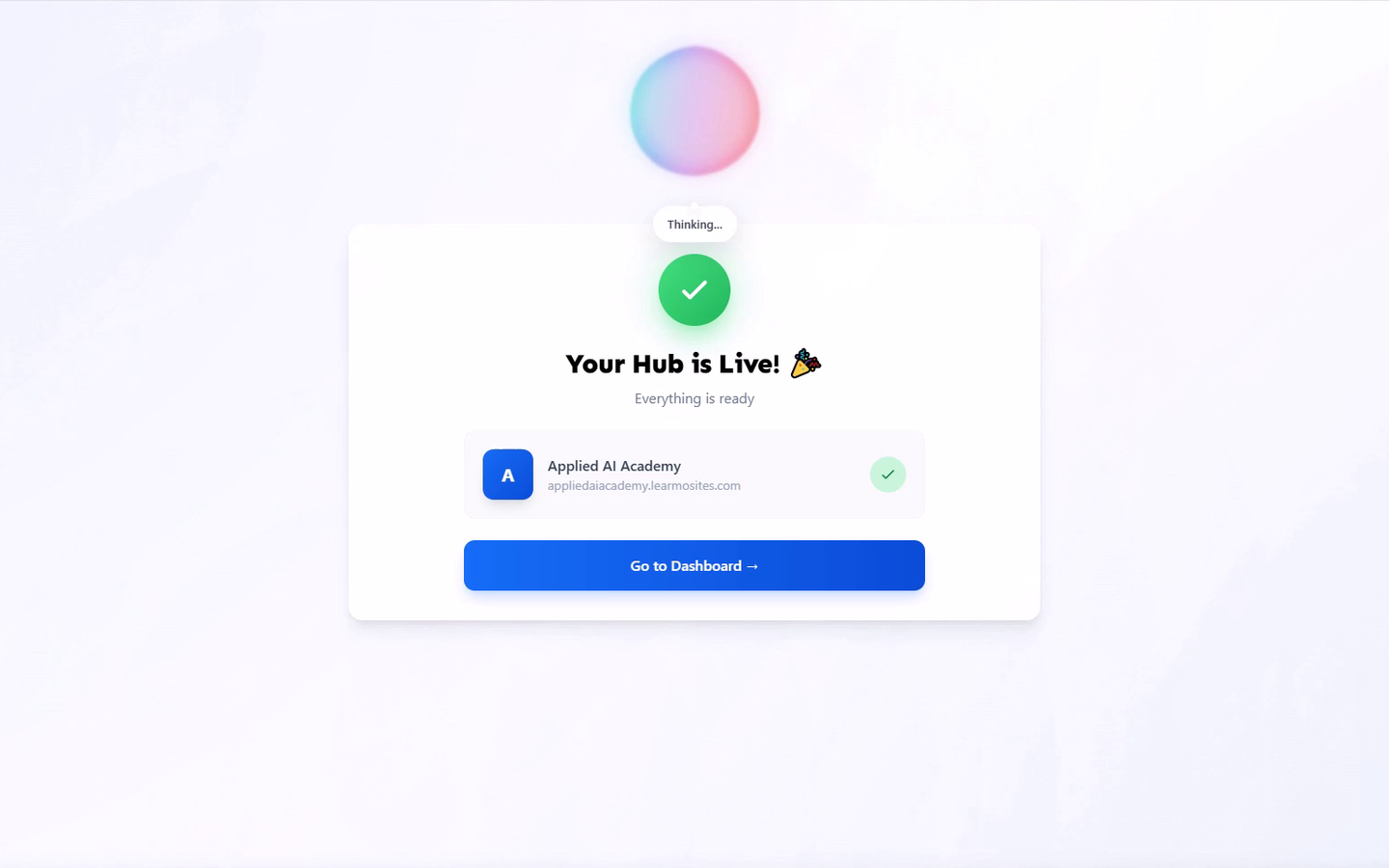
This is the actual milestone of the wizard: your Learning Hub stops being something only you can see, and becomes reachable by anyone who visits your subdomain. Everything from the wizard, your Hub Identity, branding, instructor profile, legal pages, and Home Page banner, is published and live from this point on, not a draft you still need to publish separately.
The first time you land in your Dashboard, a prompt appears: "Your Website is ready! Would you be interested in taking a tour of the Learmo platform?"
Select Cancel or Go to Dashboard to continue to your Dashboard.
[Screenshot: The "Your Website is ready!" prompt, showing the tour question with Cancel and Go to Dashboard buttons.]
From here, your Dashboard is where you'll manage everything for your Learning Hub going forward, courses, students, sales, and every setting from the wizard. On your Dashboard's Hub Overview, select Preview My Hub to see your Learning Hub the way a student would, then come back to start building out your first course.