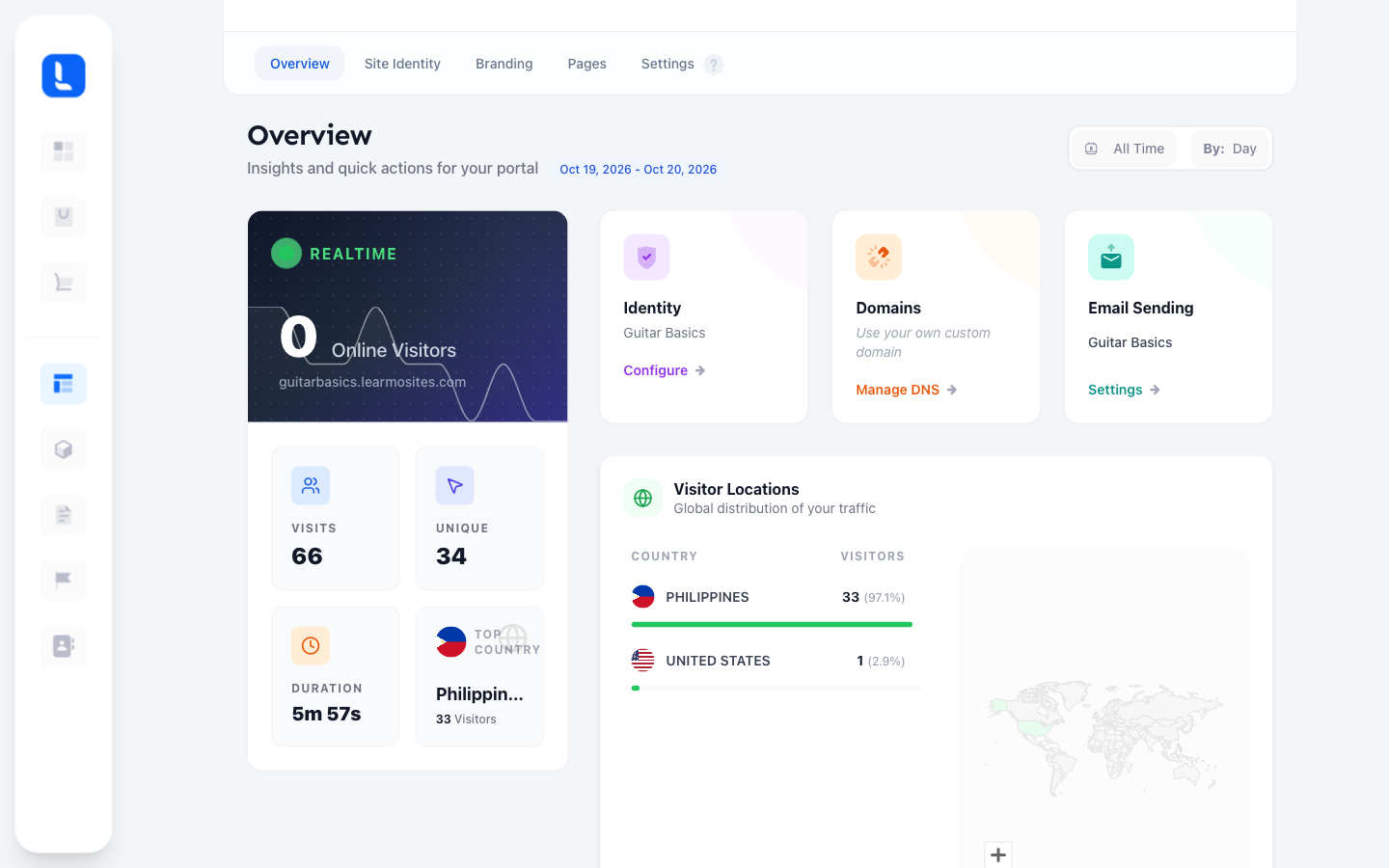
This article covers how to preview your Learning Hub as a visitor would, find and share its live link, and track visitor activity from your Dashboard.
From your Dashboard, select Preview My Hub, or go to Website and select Preview Website.
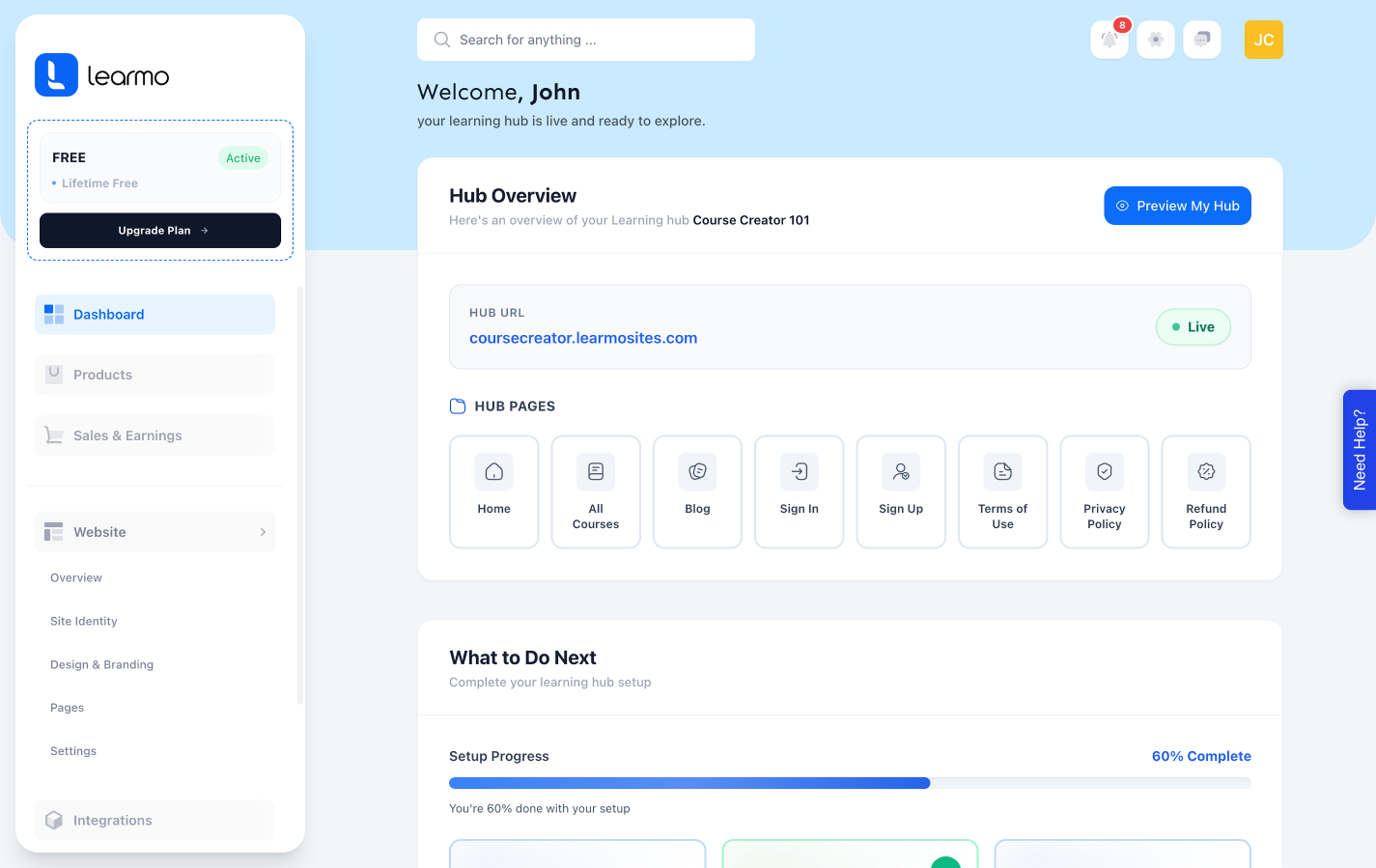
This opens your live Learning Hub, exactly as a visitor would see it.
To preview a single page instead of the whole Learning Hub, use the Preview (magnifying glass) icon on that page's row under Website > Pages. See Understand Your Learning Hub Pages for details.
From your Dashboard, go to Website.
Your Learning Hub's live URL is shown at the top, under your Learning Hub's name. Select the copy icon next to it to copy the link.
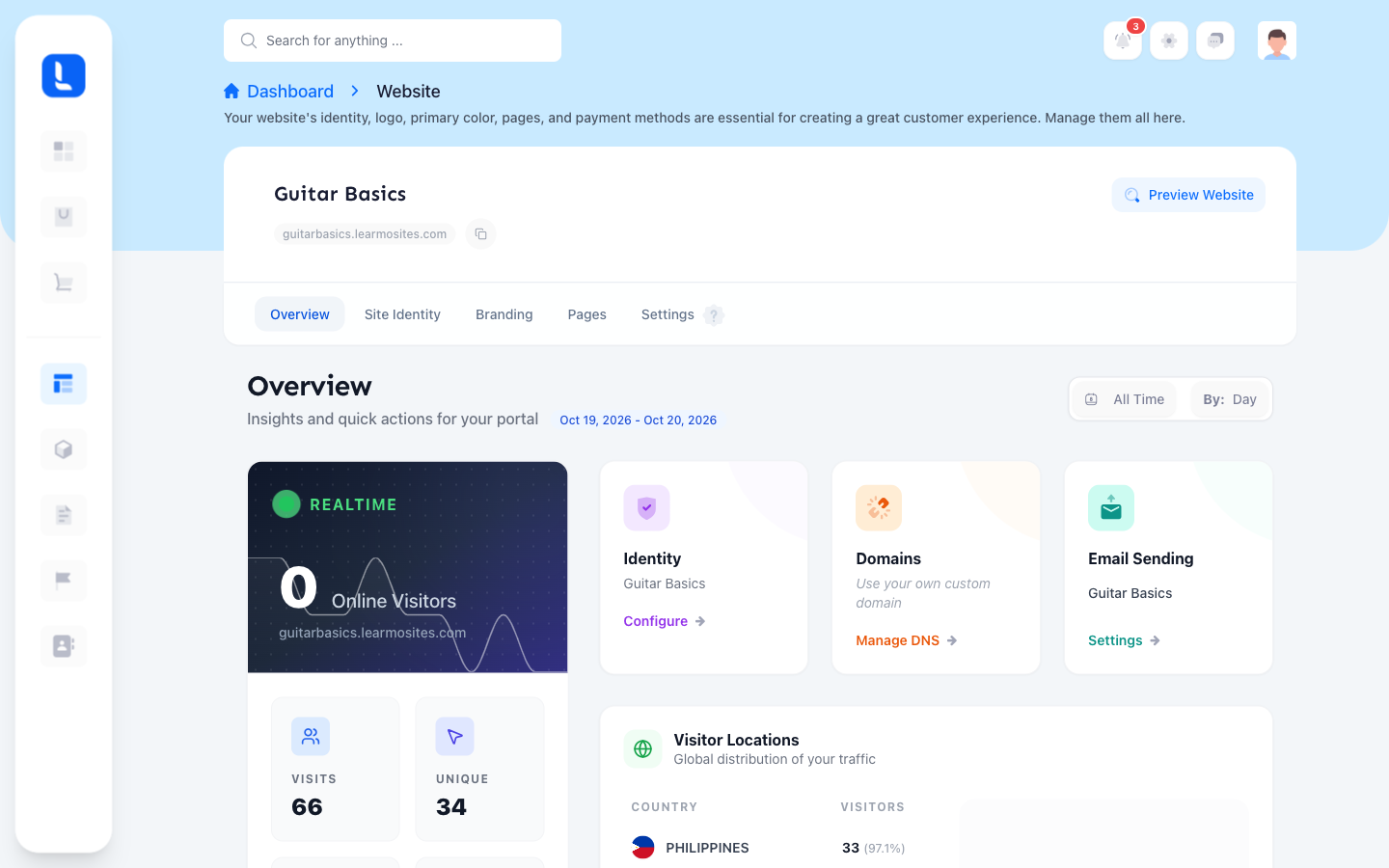
Share the copied link with students directly, since this is the same address your Learning Hub is live at.
Go to Website > Overview.
The Realtime card shows how many visitors are on your Learning Hub right now. This updates live and isn't affected by the date filter below.
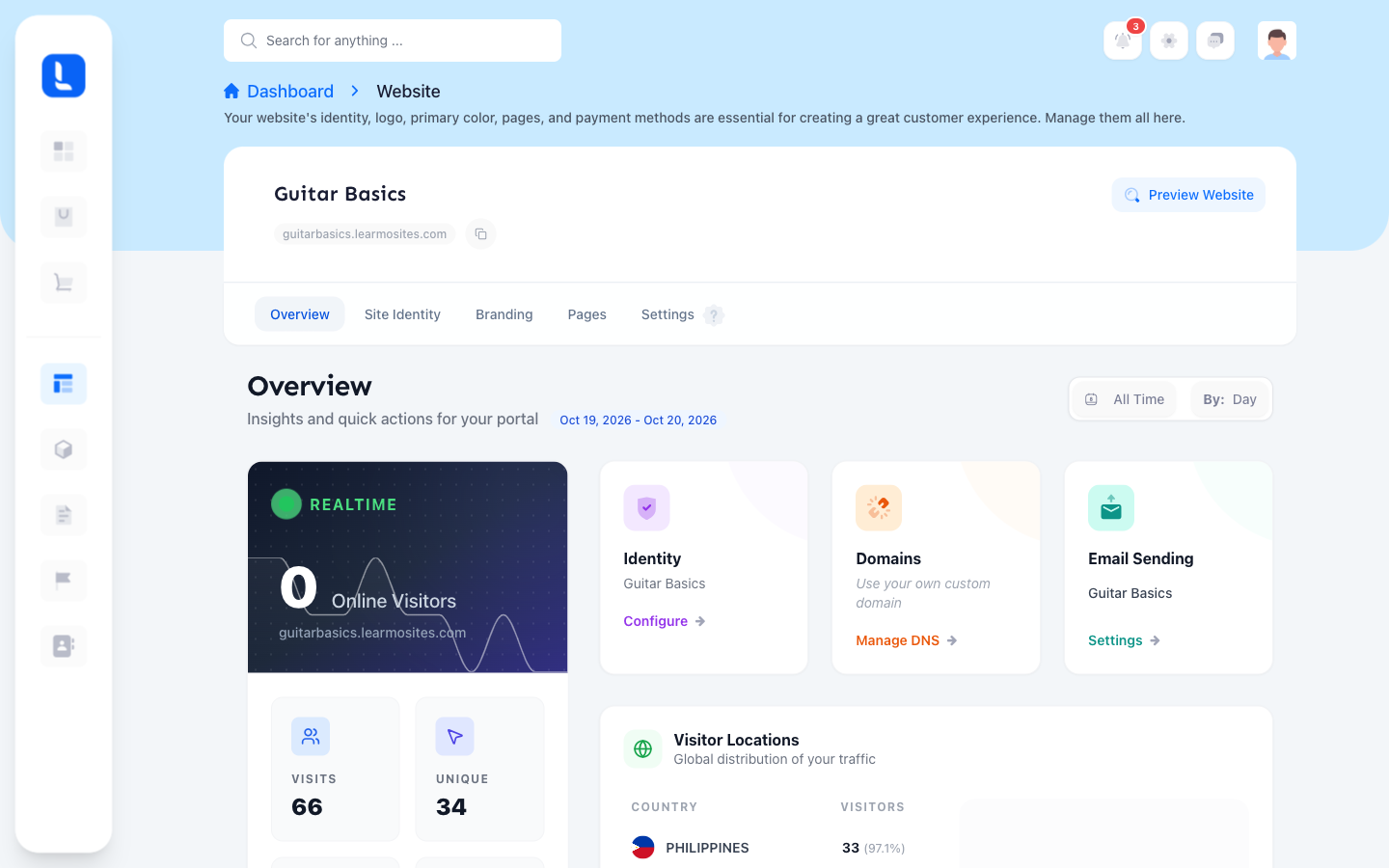
Use the date range filter (All Time, Last 7 Days, Last 30 Days, Last 3 Months, Last 6 Months, Last Year, or Custom Range) to set the period for the rest of the page's stats.
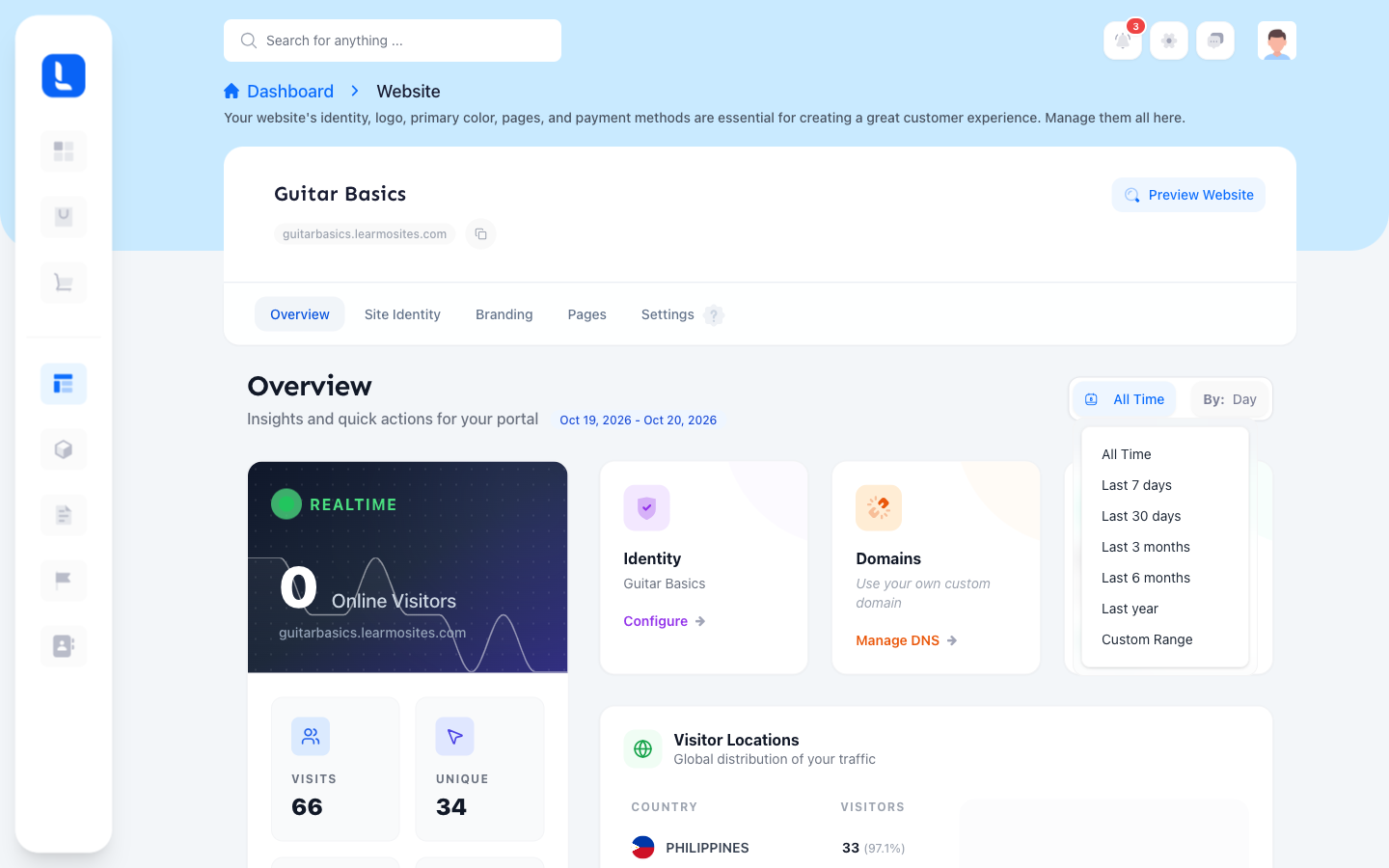
Review your stats for the selected period:
Visits and Unique visitors
Duration, the average time visitors spend on your Learning Hub
Top Country, plus a full Visitor Locations breakdown by country
Top Pages, the most-visited pages on your Learning Hub, toggled between Visitors and Views
Traffic Sources, where your visitors are coming from
Devices and Browsers, what visitors are using to view your Learning Hub